Send a marketing broadcast
On this page
Use Autosender (broadcasts) to send one message, such as a promotion, an event invitation or news, to many clients. Povidomlyaka sends the messages one by one with a pause between them, so Telegram and WhatsApp do not treat your number as spam.
Why not send promotions from Altegio
An Altegio mass mailing goes to all selected clients almost at the same time. When the channel is your personal Telegram or WhatsApp number, the messenger sees this as spam. It can disconnect your session or ban the number. Autosender spreads the same broadcast over hours or days.
Keep Altegio for appointment notifications, such as reminders and confirmations. Use Autosender for promotions and events.
What you'll need
A connected Telegram or WhatsApp channel. See Connect Telegram or Connect WhatsApp.
Altegio connected to Povidomlyaka, to import your clients. See Set up the Altegio integration. You can also paste phone numbers or upload a file instead.
Step 1. Set up the broadcast
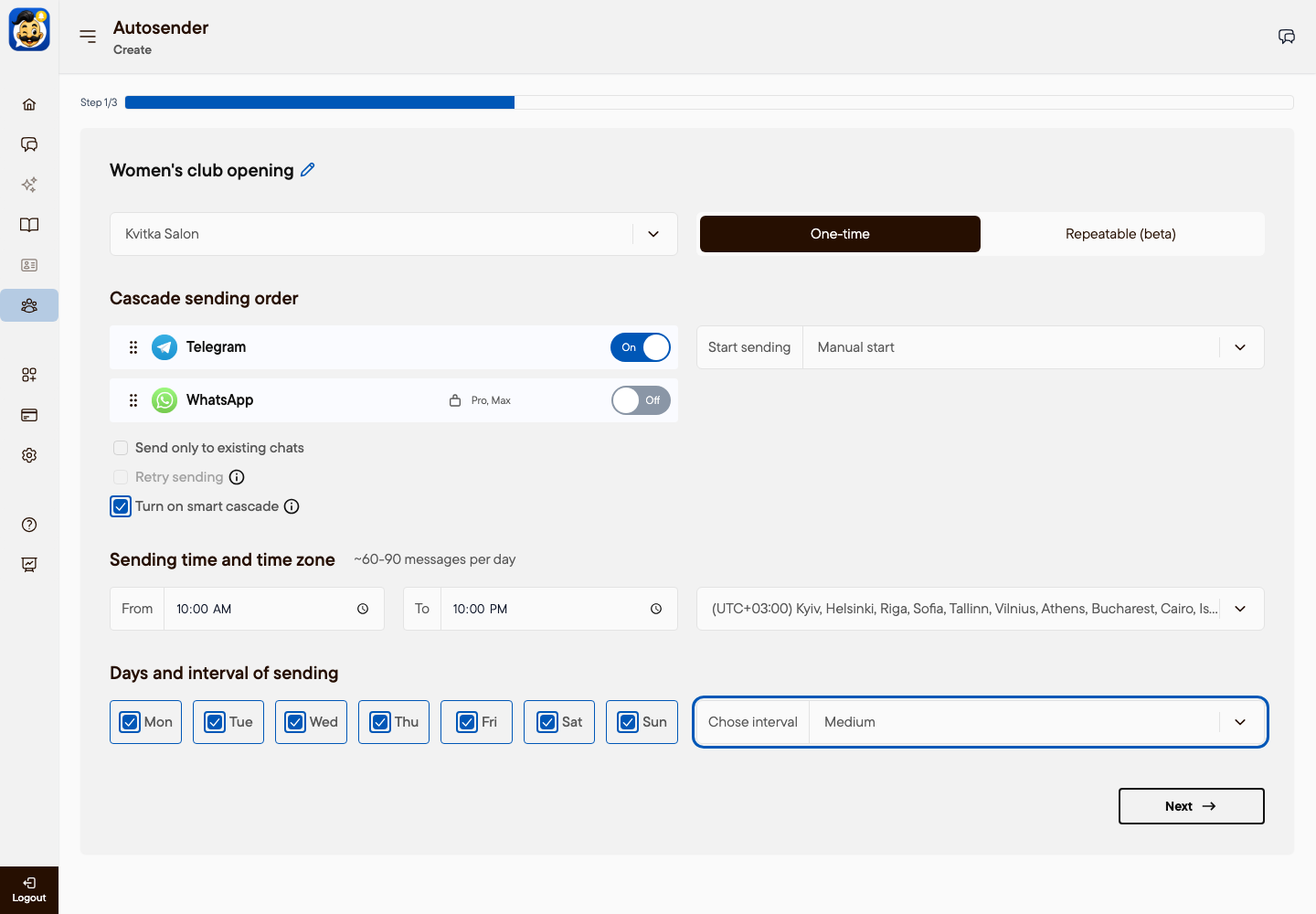
Step 1 sets the channel, the start mode and the sending speed.
In the left menu, open Autosender → Create.
Click the pencil icon and enter a name for the broadcast, for example "Club opening, October".
Select the channel group and keep One-time.
In Cascade sending order, turn on the channel you want to use. On the Base plan, a broadcast uses one channel.
Optional: select Send only to existing chats. The broadcast then goes only to clients who already have a chat with you. This is the safest option for a personal Telegram number.
In Start sending, select Manual start to start the broadcast later, or Immediately.
Set the sending hours and your time zone.
Keep the Medium interval. Medium sends one message every 8–12 minutes, about 60–90 messages per day. Faster intervals (Pro and Max plans) increase the risk of a ban on a personal number.
Click Next.
Step 2. Choose the recipients
Step 2 imports the clients who will receive the message.
Select ALTEGIO.
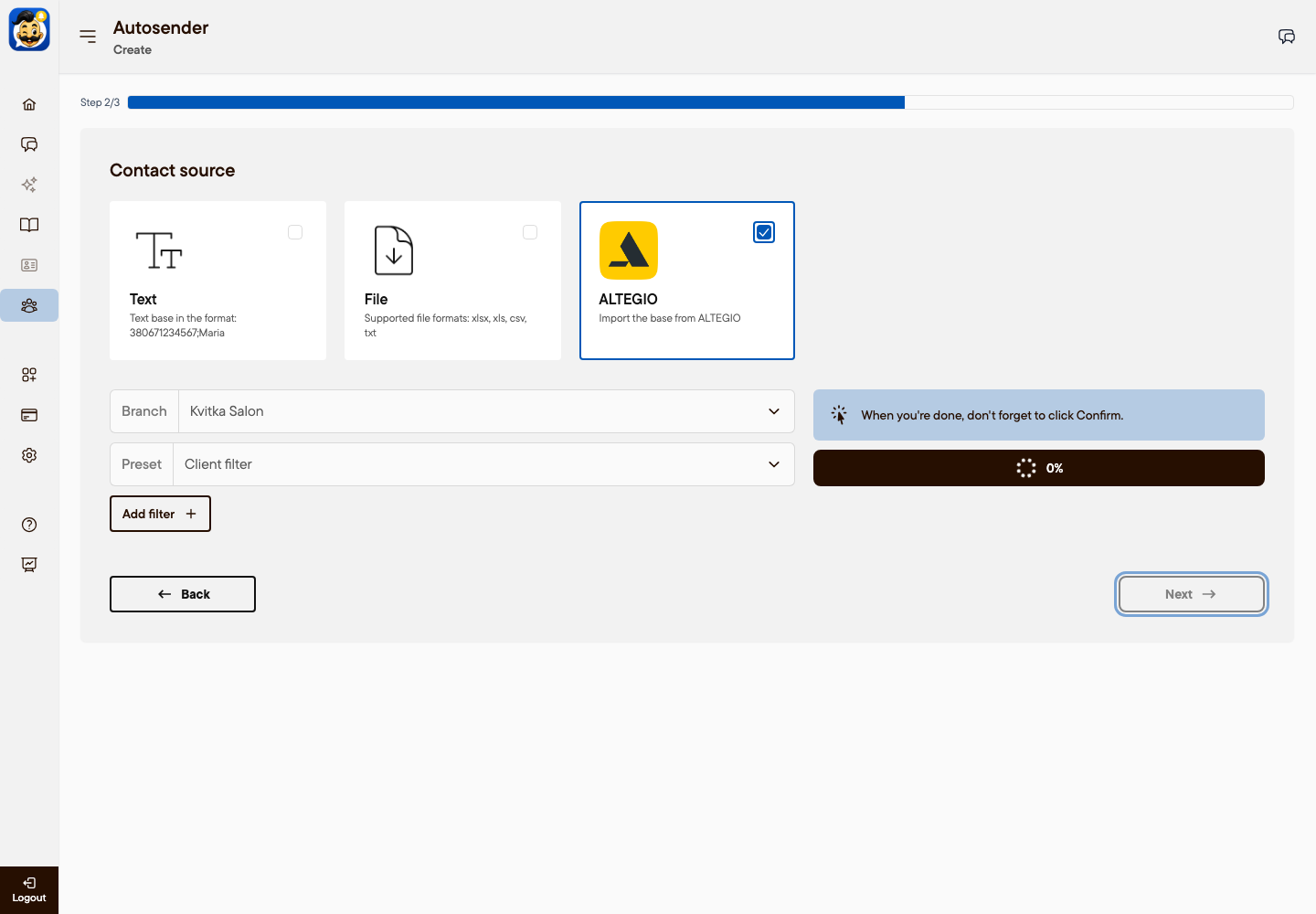
Select your branch. In Preset, select Client filter.
Optional: click Add filter to narrow the list.
Click Confirm and wait for the message "contacts uploaded".
Click Next.
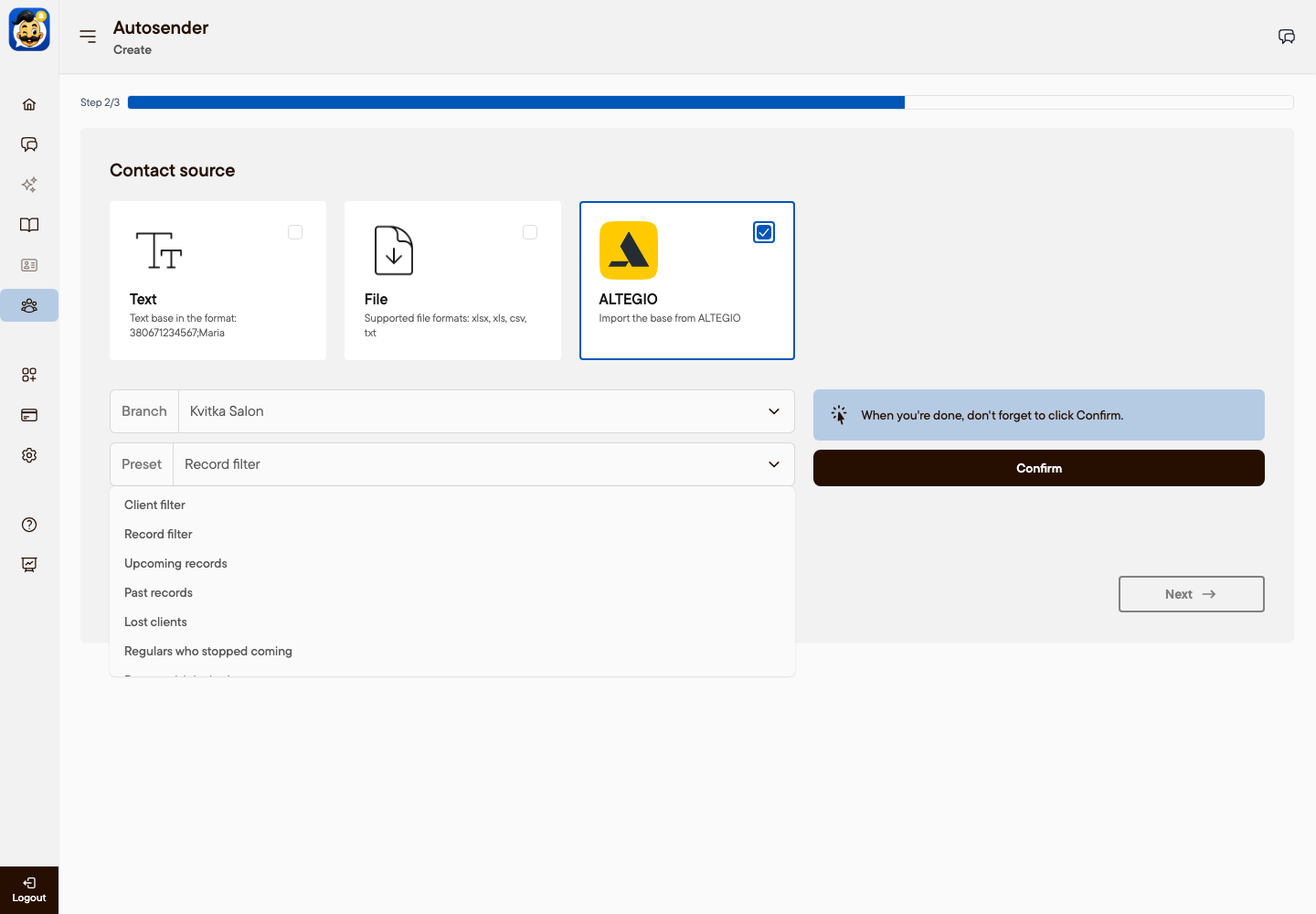
Use Client filter for promotions. It adds each client once. Record filter adds one row per appointment, so a client with several visits would get the same message several times.
Step 3. Write the message
Enter the message text.
To address each client by first name, type %B%. For example: "Hello, %B%! Join us on Saturday at 12:00."
Optional: attach an image or a file up to 20 MB.
In Send a test message, enter your own phone number and send a test. Check how the message looks.
Click Create.
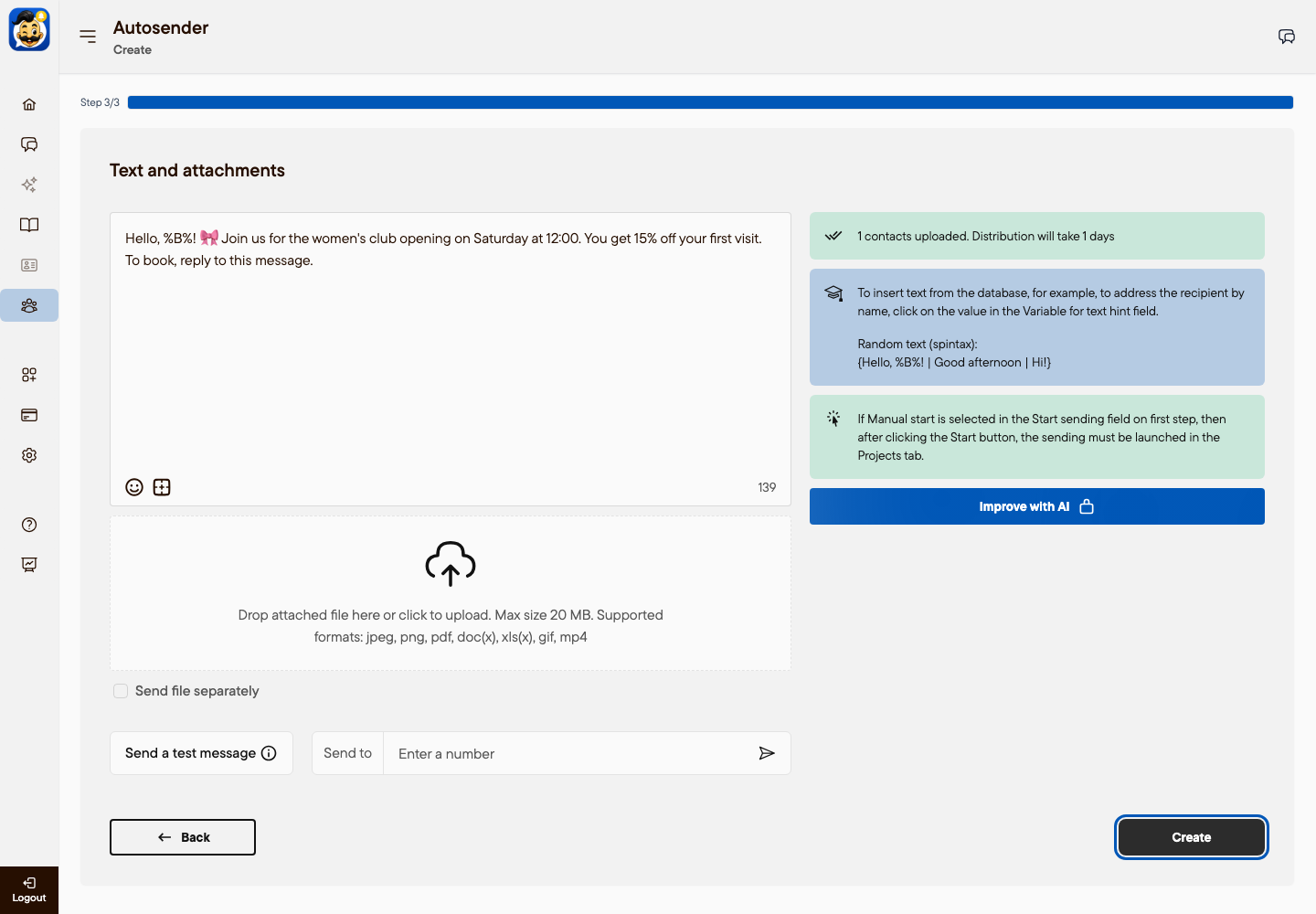
Other Altegio variables: %C% (last name), %E% (appointment date), %F% (appointment time), %G% (staff member), %I% (services).
Start the broadcast and check the results
A broadcast with Manual start waits until you start it.
Open Autosender → Projects.
Click the broadcast status Click to start, then click Start.
To stop a running broadcast, click its status in Projects. To see delivered, read and failed messages, open Autosender → Statistics.
Plan limits
Base: one channel per broadcast, one running broadcast, up to 1,000 contacts, Medium interval.
Pro: a cascade of several channels, up to 5 running broadcasts, up to 10,000 contacts, faster intervals, scheduled start.
Max: up to 100 running broadcasts, up to 100,000 contacts, all intervals, automatic resend of failed messages.
For prices, see Plans, pricing and payment.
Was this article helpful?