
Set up a repeatable broadcast
On this page
A repeatable broadcast sends messages automatically on a schedule. On each run, Povidomlyaka takes a fresh list of clients from Altegio with your filter and sends them the message. For example, it can invite every client back 30 days after their visit.
Repeatable broadcasts are in beta.
How a repeatable broadcast works
You create the broadcast once: the Altegio filter, the text, the channel and the schedule.
On each scheduled day, at 00:00 in your time zone, Povidomlyaka selects the clients who match the filter on that day.
The messages go out during your sending hours with the selected interval.
Each run appears as a separate broadcast with its own statistics.
Repeatable broadcasts work only with clients from Altegio. A file or a pasted list cannot be used, because the list must update on every run.
Create a repeatable broadcast
Open Autosender → Create.
Enter a name and select Repeatable (beta).
Turn on the channel in Cascade sending order.
In Script, select how often the broadcast runs. See the options below.
Set the sending hours, the time zone and the Medium interval. The hint next to the hours shows how many messages can go out per day.
Click Next.
Select ALTEGIO, your branch and a Preset. Fill in the required filters, for example Record (days ago) = 30.
Click Next, write the message and click Create.
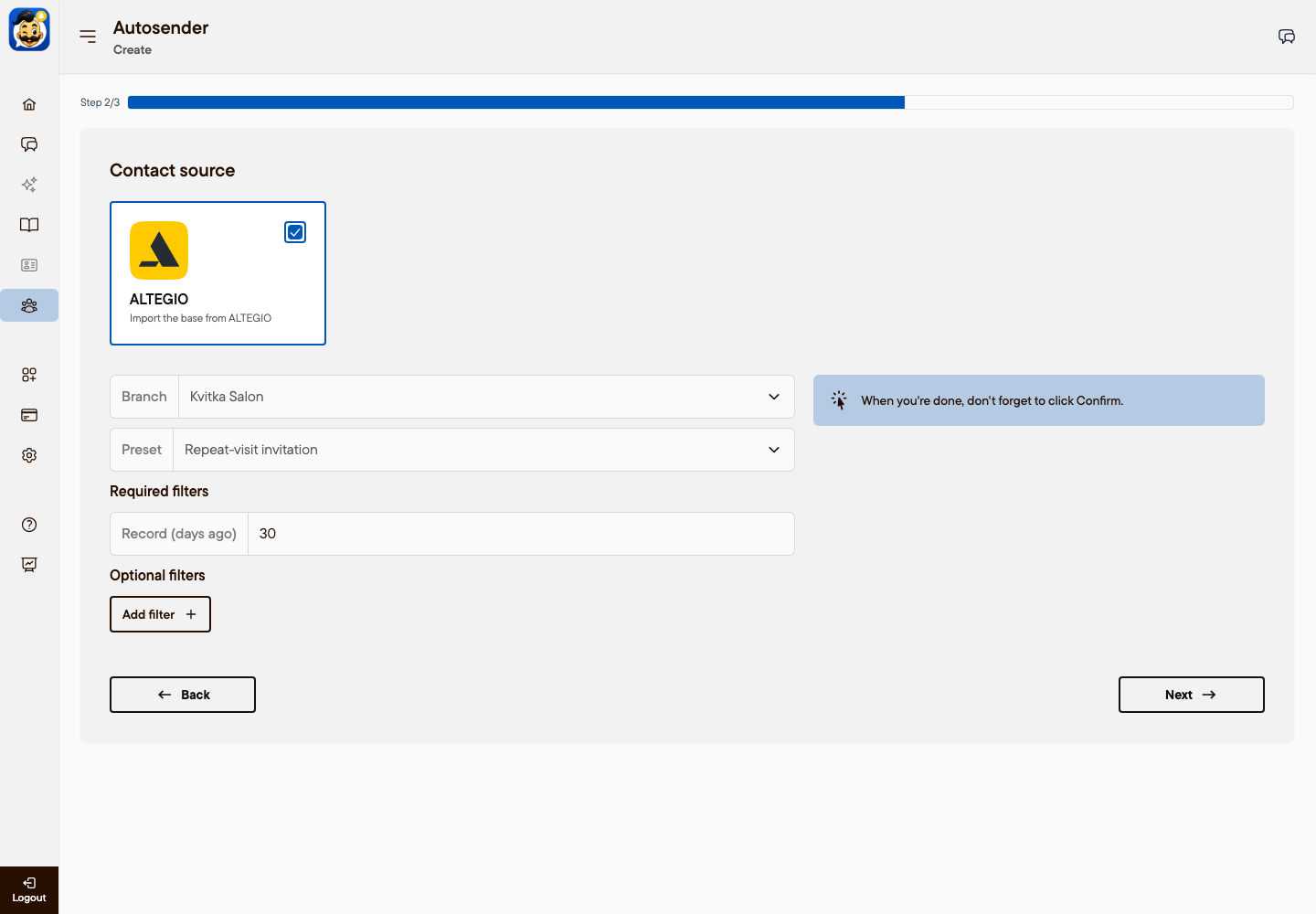
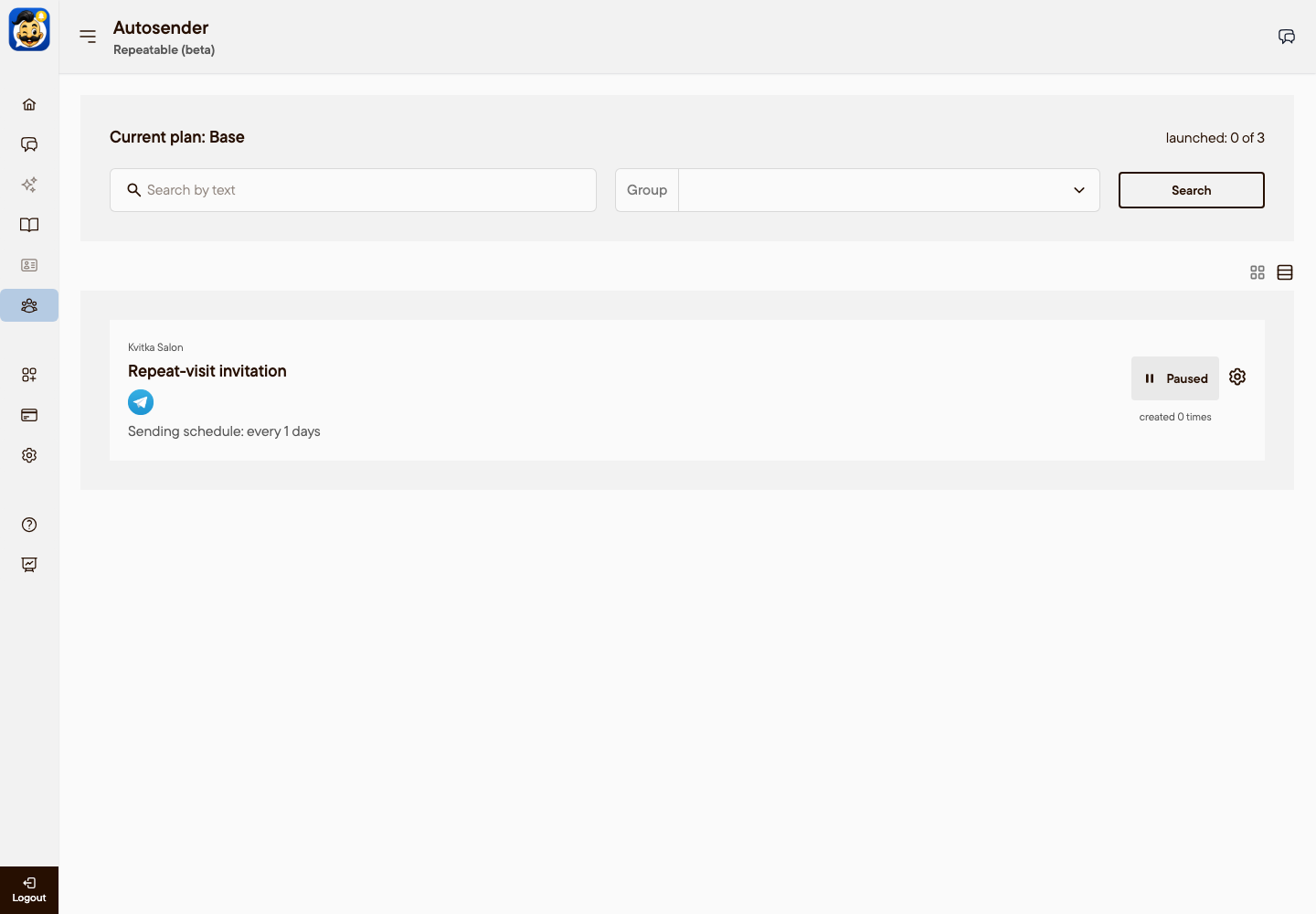
A new repeatable broadcast is created paused. Start it in the list.
Schedule options
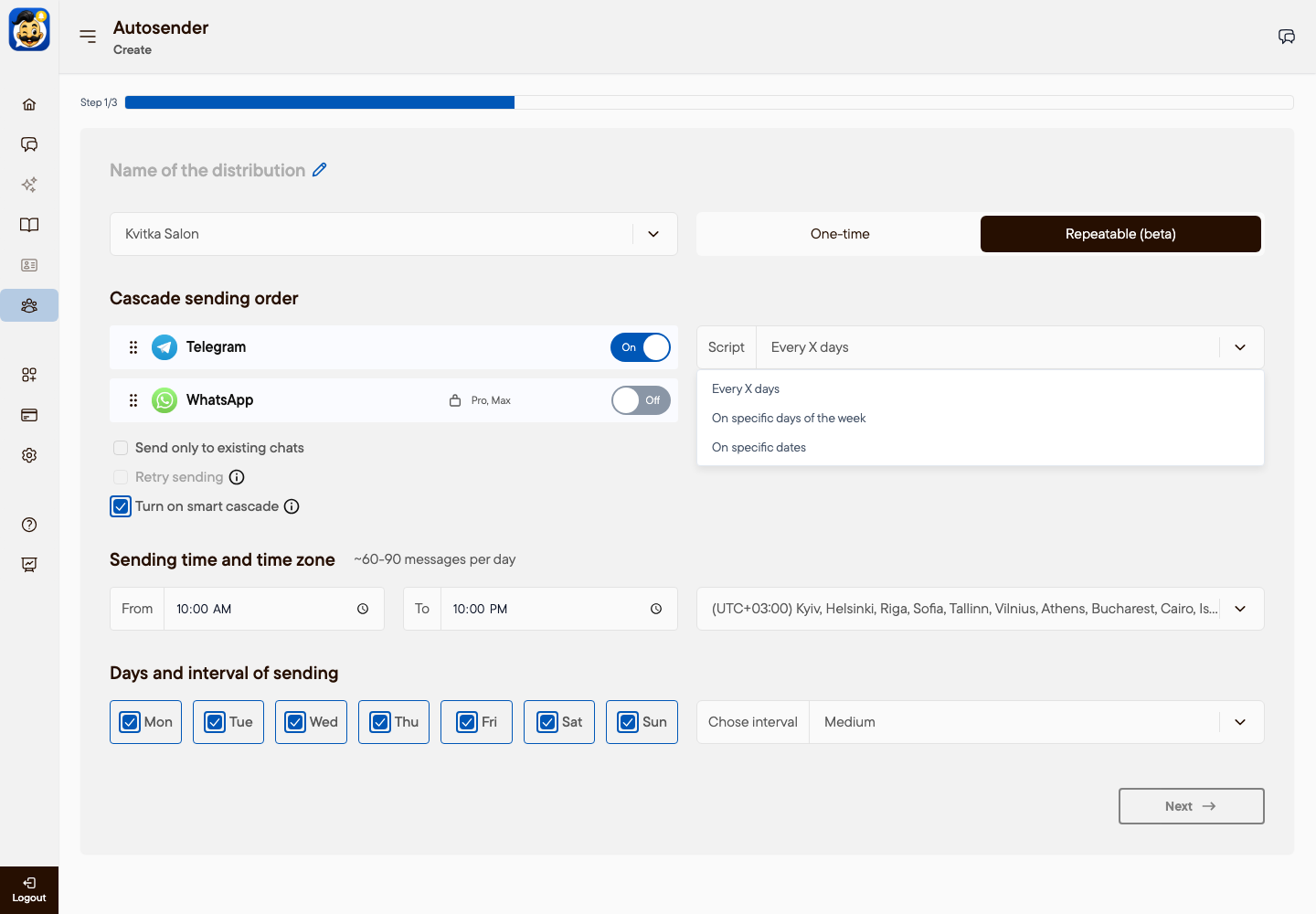
Every X days: enter the number of days. 1 means every day.
On specific days of the week: select the days in Days and interval of sending.
On specific dates: select the days of the month, for example the 1st and the 15th.
Start, pause and edit
Open Autosender → Repeatable (beta).
Click the status Paused, then click Start.
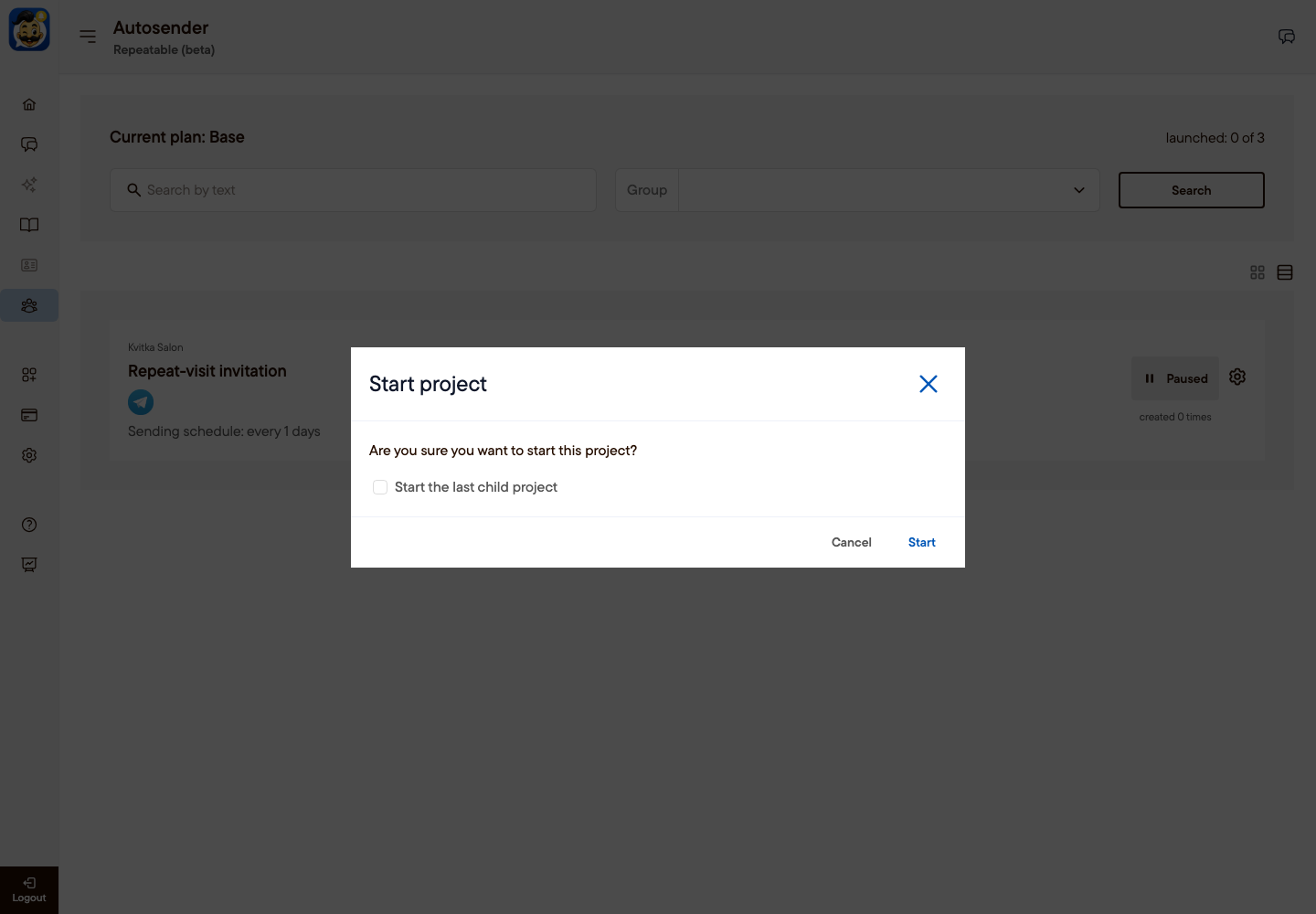
To pause, click the status Running. To also stop the messages that are already being sent, select Stop all child projects.
created N times shows how many runs there were. Click it to see each run and its statistics.
To change the name, the schedule, the sending hours or the text, click the gear icon. Click Save changes to save or Delete to delete the broadcast.
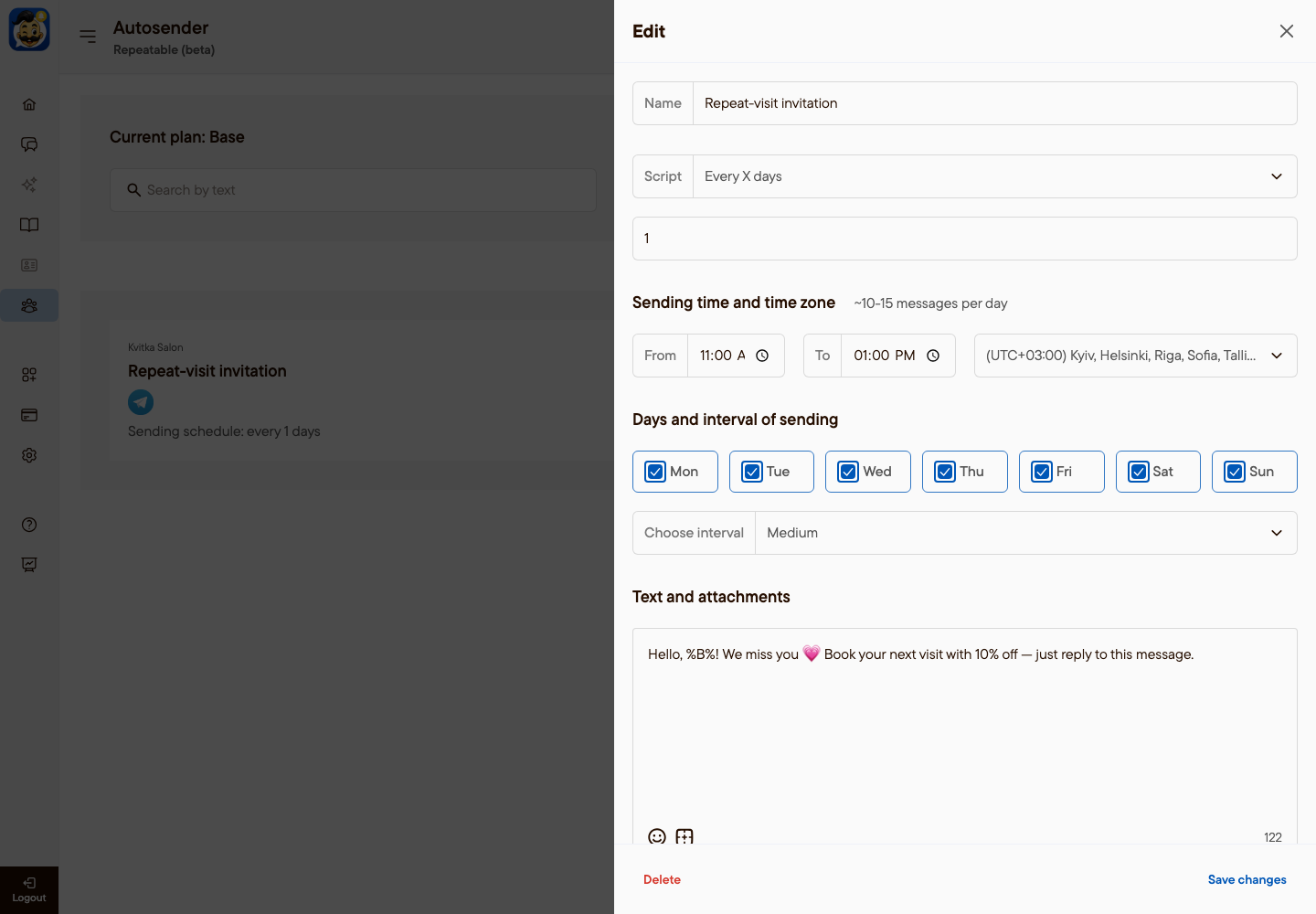
The Altegio filter cannot be changed after creation. To use a different filter, create a new repeatable broadcast.
Altegio presets
The preset defines which clients get the message on each run.
Repeat-visit invitation: clients who came exactly N days ago and have not booked again.
Lost clients: clients whose appointment exactly N days ago was cancelled or did not take place, and who have no new appointments.
Regulars who stopped coming: clients with several visits in a period and no future appointments.
Past records: clients with an appointment exactly N days ago.
Upcoming records: clients with an appointment from today up to N days ahead.
Client filter: clients by category, number of visits, birthday and other client data.
Record filter: appointments by date, staff member, service and status.
Use Add filter to narrow the list, for example to one service.
Ready-made examples
Repeat-visit invitation after 30 days. Script: Every X days = 1. Hours: 11:00–13:00. Preset: Repeat-visit invitation, Record (days ago) = 30. Text: "Hello, %B%! It has been a month since your visit. Book your next appointment with 10% off."
Win back clients after a cancellation. Script: Every X days = 1. Hours: 12:00–14:00. Preset: Lost clients, 14 days ago. Text: "Hello, %B%! We are sorry we did not see you. Choose a convenient time, and we will keep a slot for you."
Birthday greetings for next month. Script: On specific dates = 25. Preset: Client filter, Birthday = Next month. Text: "Hello, %B%! Your birthday is coming soon. Get 15% off any service during your birthday month."
Regulars who stopped coming. Script: On specific dates = 1. Preset: Regulars who stopped coming, 3 or more visits in the last 6 months.
Things to know
A client can get the message again on the next run if they still match the filter. Presets with "exactly N days ago" select each client on one day only, so they do not repeat.
Upcoming records includes today's appointments. With N = 1, a client with an appointment today and tomorrow can get two messages.
When a new run starts, unsent messages from the previous run stop. Choose sending hours long enough for your list.
A repeatable broadcast has no end date. It runs until you pause it.
Base allows 3 running repeatable broadcasts, Pro 20, Max 500. See Autosender plans.
Was this article helpful?