
Import contacts from a file
On this page
You can send a broadcast to clients from a file, for example a list exported from another system. Povidomlyaka reads the phone numbers from one column and uses the other columns as variables, such as the client's name.
Prepare the file
A correct file is the main condition for a successful import.
Put the phone numbers in one column, for example column A.
Write every number in full international format: 380671234567. A plus sign, spaces and dashes are allowed: +380 67 123-45-67.
Do not use local numbers that start with 0, such as 0671234567. They are imported but the messages are not delivered.
In Excel, set the phone column to the Text format. Otherwise Excel can remove the plus sign or the first digits.
Put other data in the next columns: first name in column B, last name in column C, and so on.
A header row is allowed. Povidomlyaka skips it automatically.
Example of a correct file:
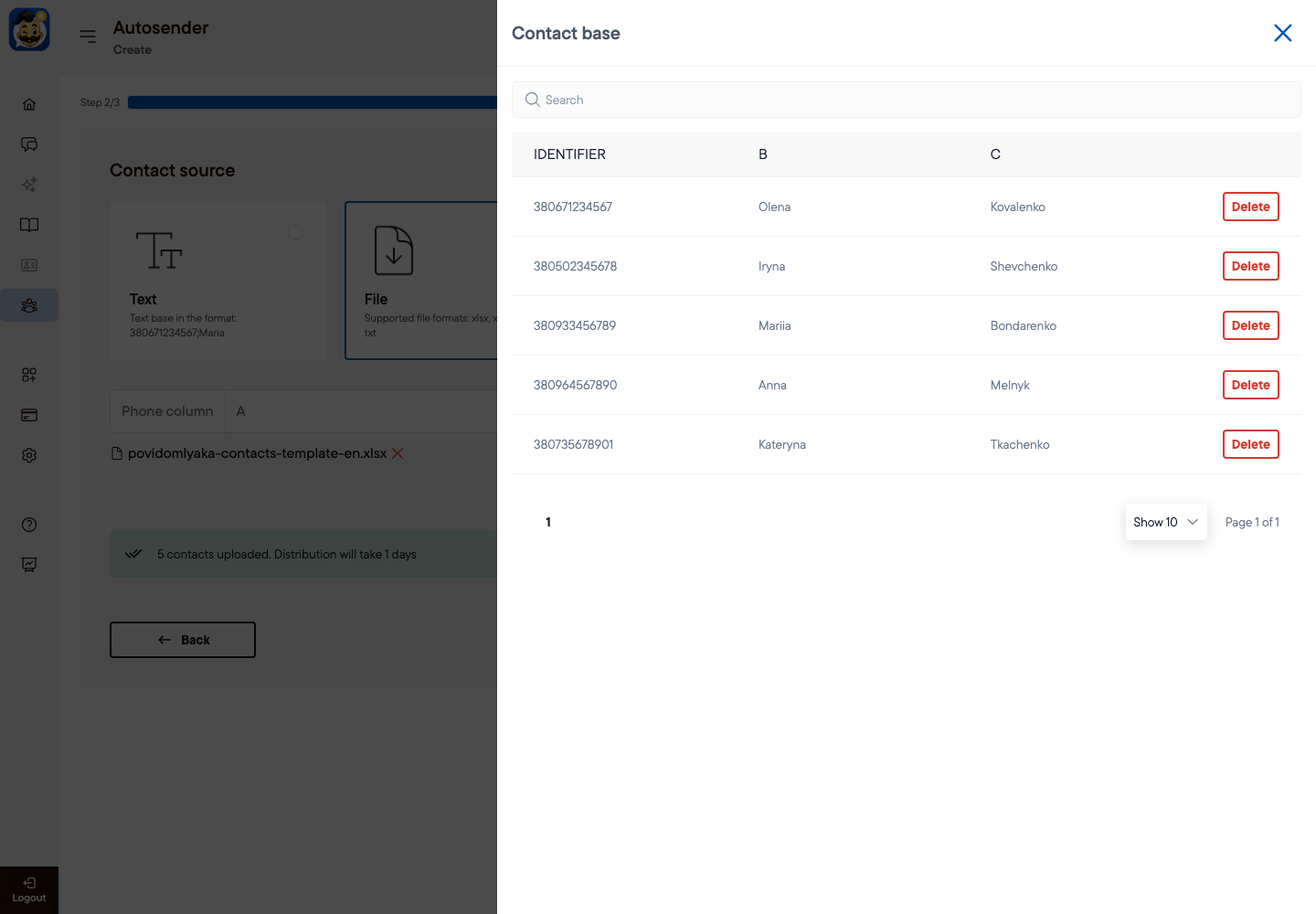
Column A: 380671234567, column B: Olena, column C: Kovalenko.
Column A: 380502345678, column B: Iryna, column C: Shevchenko.
File requirements
Formats: xlsx, xls, csv or txt. The best choice is xlsx.
Maximum size: 50 MB.
Only the first sheet of an Excel file is read.
Only columns A to Z are read.
Save a CSV file as CSV UTF-8. In other encodings, Cyrillic names can turn into unreadable characters.
In a TXT file, write one contact per line and separate the fields with a semicolon: 380671234567;Olena.
Import the file
Open Autosender → Create and set up step 1. See Send a marketing broadcast.
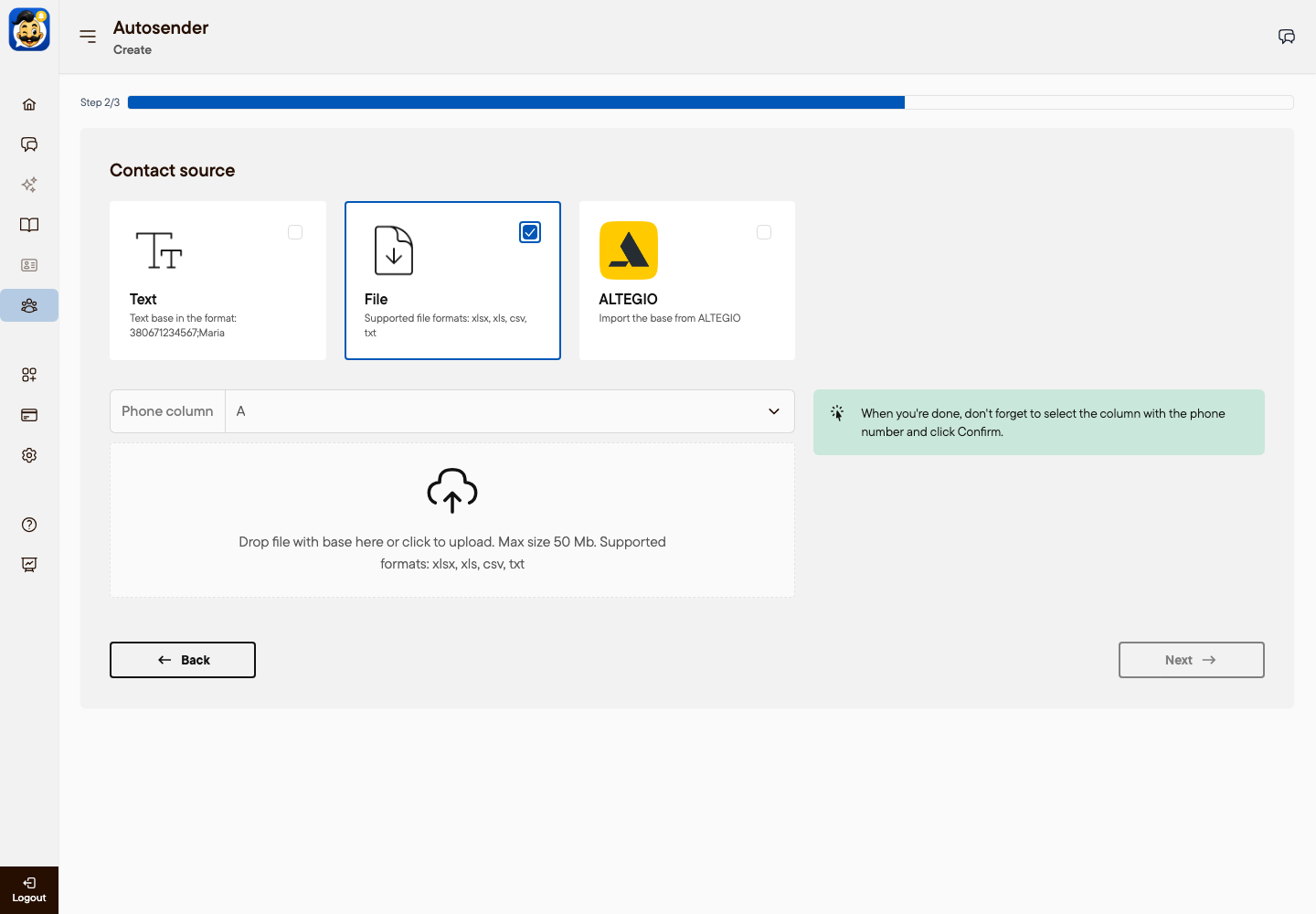
In step 2, select File.
In Phone column, select the letter of the column with the phone numbers.
Drag the file to the upload area, or click the area and select the file.
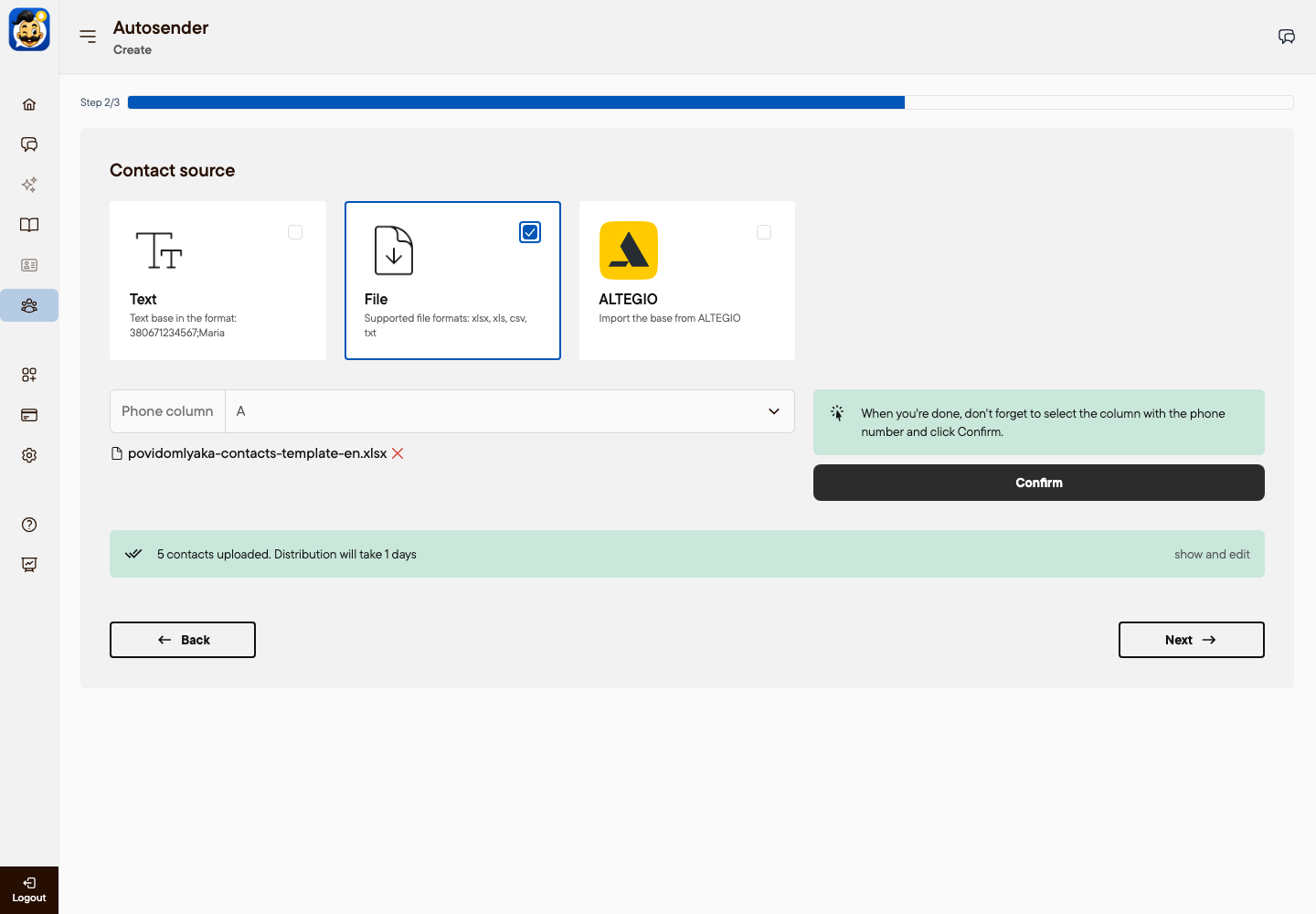
Click Confirm.
Wait for the message "contacts uploaded". The message shows how many contacts were imported and how long the broadcast will take.
To check the list, click show and edit. In the Contacts panel you can search for a contact or delete it.
Click Next and write the message.
Use columns as variables
Each column becomes a variable with the column letter. Write the letter in capitals between percent signs.
%B% inserts the value from column B, for example the first name.
%C% inserts the value from column C, for example the last name.
For example: "Hello, %B%! We invite you to the women's club opening on Saturday."
Variables are case-sensitive: %b% does not work. If a cell is empty, the variable is replaced with nothing.
Paste numbers as text
For a short list, you do not need a file.
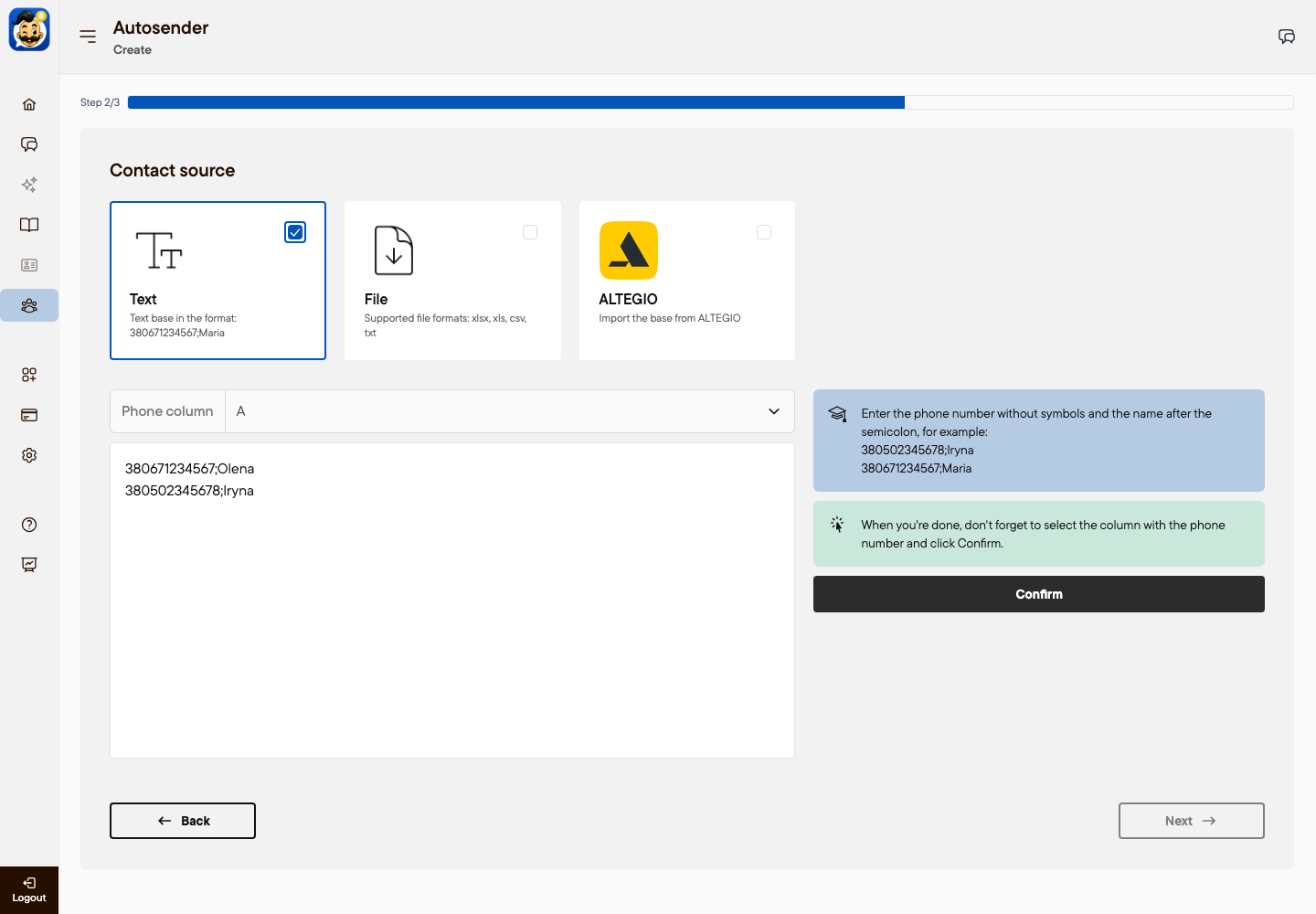
In step 2, select Text.
Enter one contact per line in the format phone;name, for example 380671234567;Olena.
Click Confirm. The name is available as %B%.
Limits and duplicates
The number of contacts in one broadcast depends on your plan: 1,000 on Base, 10,000 on Pro, 100,000 on Max. Contacts above the limit are not added. To send to more clients, split the file or see Autosender plans.
If a number appears in the file twice, the client gets the message once.
Numbers from the channel group's blacklist are skipped.
Troubleshooting
"No recipients imported": check that Phone column shows the correct letter.
"Error" after you click Confirm: check the file format. Save the file as xlsx and try again.
Names show as unreadable characters: save the file as xlsx or as CSV UTF-8.
Fewer contacts than rows in the file: rows without a valid number are skipped, and so is the header row.
Was this article helpful?