
Check that notifications work
Before you rely on automatic messages, send yourself a test notification. It takes 2 minutes.
Send a test notification
In your Povidomlyaka account, open Channels and check that your channels show Online.
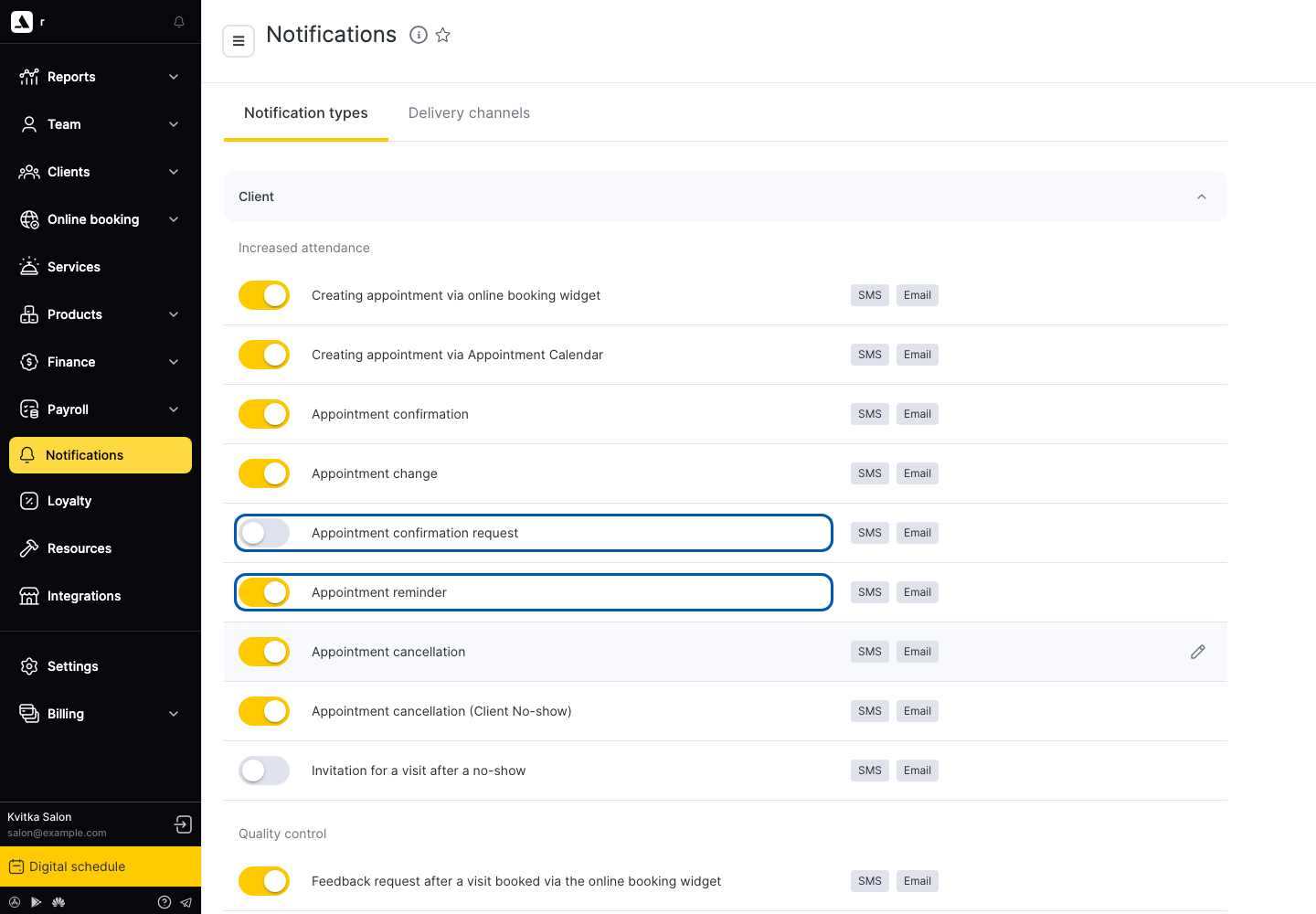
In Altegio, open Notifications → Notification types and check that Creating appointment via Appointment Calendar is turned on.
In Altegio, create an appointment for a client with your own phone number. If your Telegram or WhatsApp in Povidomlyaka is connected on this same number, use a second phone or a colleague's number.
Within a minute, you get a message in Telegram, WhatsApp or SMS.
Find the message in History
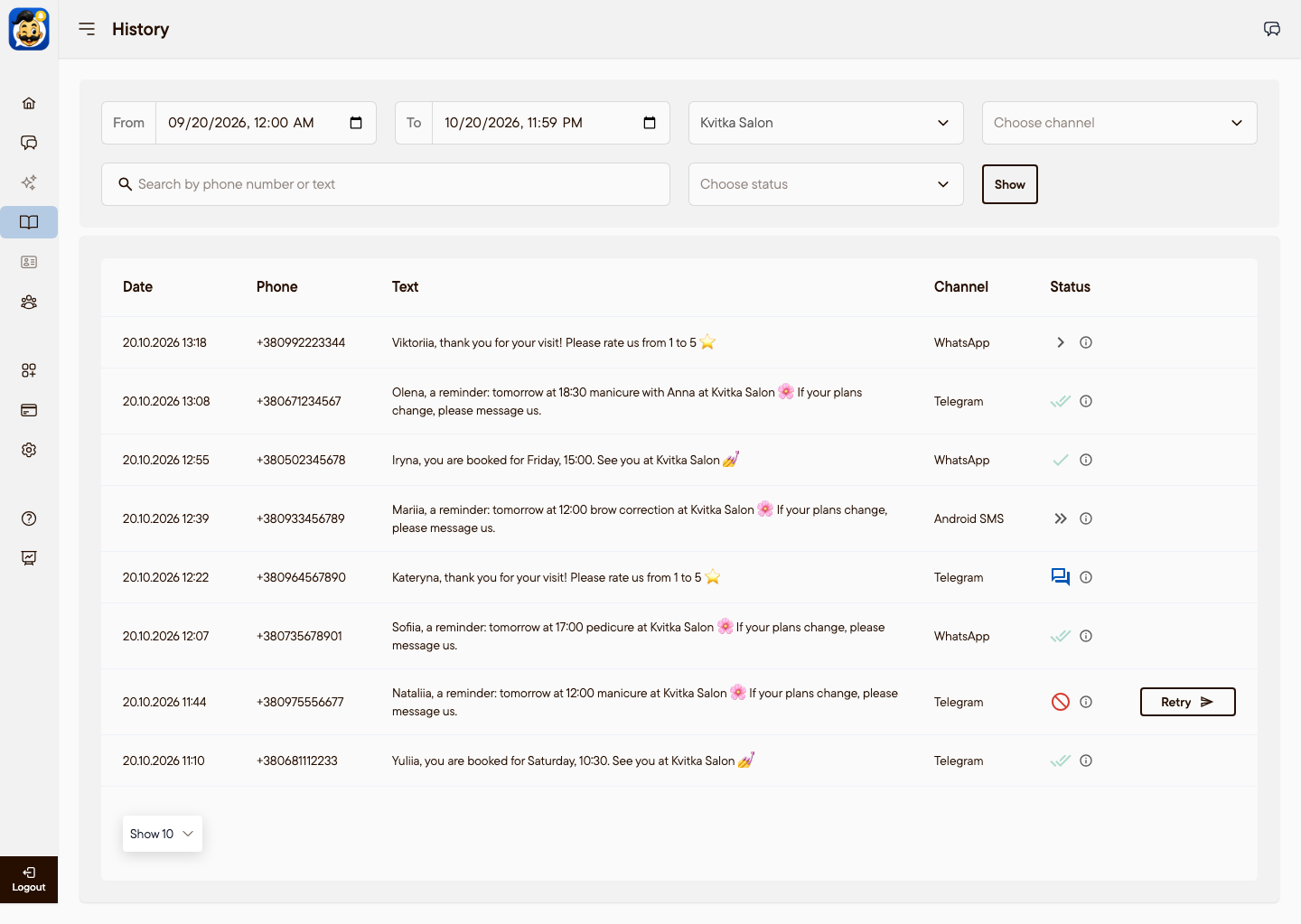
Open History in your account. Each message Povidomlyaka sent is in the list with its channel and status:
Waiting: the message is in the queue.
Sent: the message was sent to the messenger.
Delivered: the messenger delivered it.
Read: the client read it.
Replied: the client answered.
Error: the message was not sent. Point at the ⓘ icon to see the reason.
If the message did not arrive
The message is not in History: Altegio did not send it to Povidomlyaka. Check that the notification type is turned on in Altegio, that Notifications → Delivery channels is set to always send through SMS and messengers (SMS + Messengers – Always send), and that the Povidomlyaka app is connected to your branch. See Set up appointment notifications.
Error "Recipient is not on this channel": the number has no account in this messenger. Add WhatsApp or SMS to the cascade so the message can go to the next channel. Then click Retry.
The channel is not Online: reconnect it, for example scan the QR code again. See Connect Telegram or Connect WhatsApp.
The channel shows Blocked: the trial or subscription has ended. See Free trial and what comes next.
A test to your own number landed in Saved Messages: you sent the message to the same number your Telegram is connected on. Telegram puts such messages in Saved Messages, not in a separate chat. Clients get a normal message from your account. Use another number for the test.
Another SMS operator is selected in Altegio: on the Notifications → Delivery channels tab, the Povidomlyaka app must be selected, not another SMS provider. If another operator is selected, Altegio sends notifications through it, and they are not in Povidomlyaka History.
The app is installed, but access was not confirmed: if you did not confirm access when you installed the app in Altegio, the integration is not active. Open the Povidomlyaka app in Altegio again, click Connect and confirm access. See Register and connect through the Altegio app.
You get a copy of every notification: Altegio sends these copies, not Povidomlyaka. In Altegio, open Notifications → Notification types and check the sections for the administrator and for staff: turn off the notifications you do not need. If the copies keep coming, contact Altegio support.
If nothing helps, write to our support and include the time of the test appointment.
Was this article helpful?