
Reply to clients
Open a chat, type your message and press Enter. The client gets your reply in the messenger they wrote from.
Reply or note
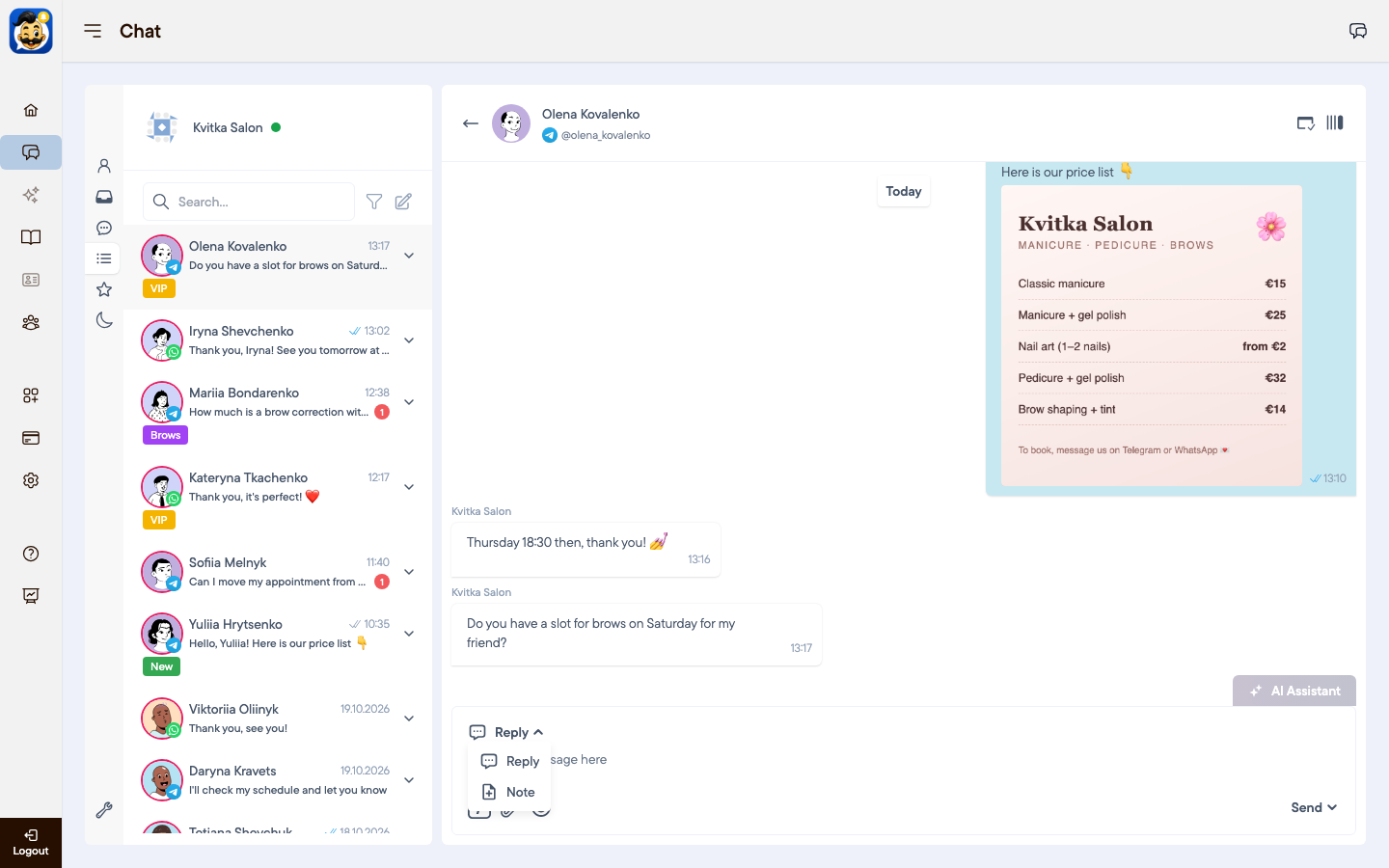
Above the message field, choose the message type.
Reply: the client sees the message.
Note: only your team sees it. Use notes for internal comments, for example "prefers nude shades".
Attach files
Click the paper clip icon, drag files into the chat, or paste them.
Files can be sent only in Reply mode.
Use templates
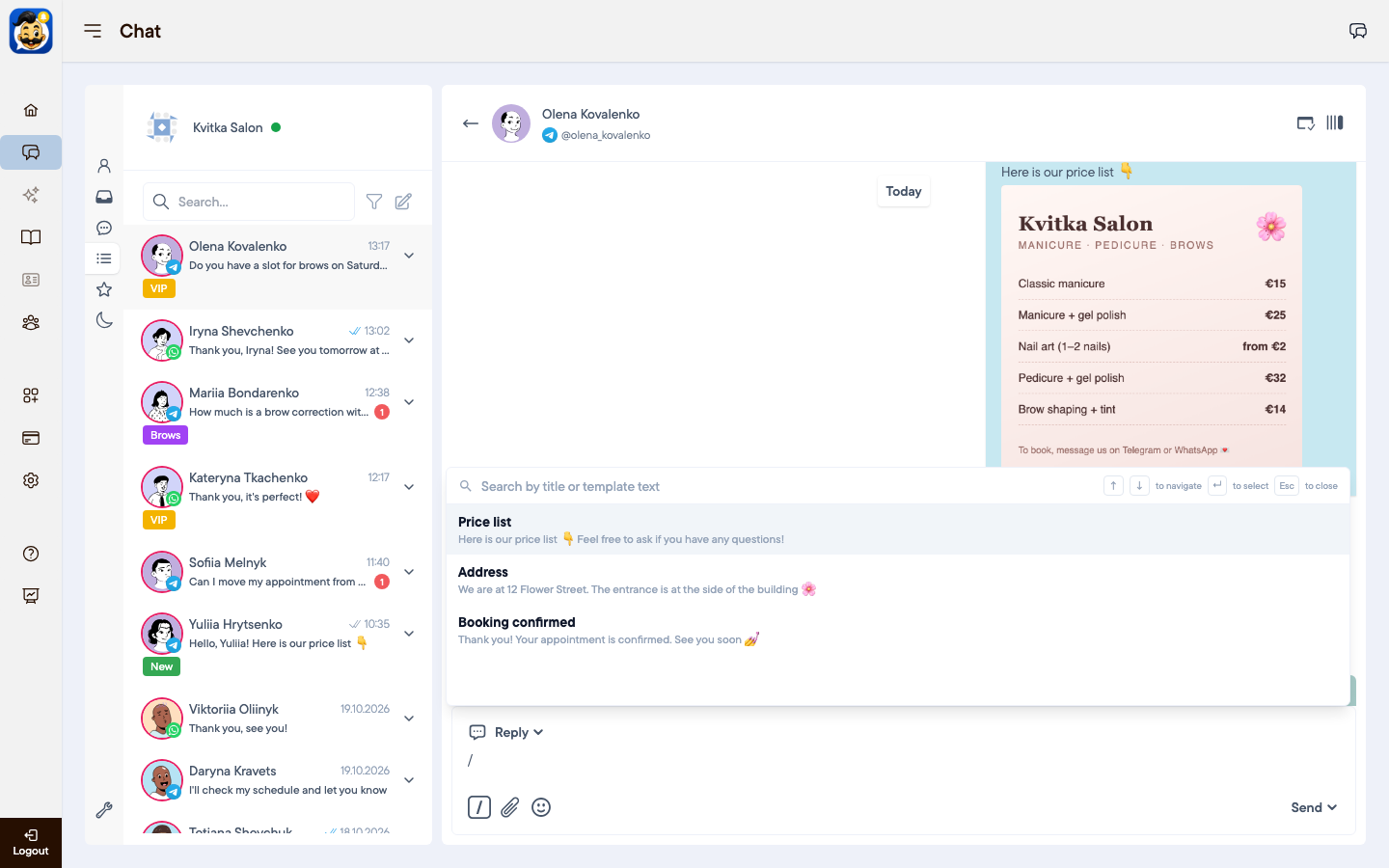
Templates save time on answers you send often, such as the price list or your address.
Type / in the message field, or click the / icon.
Choose a template and press Enter.
Edit the text if needed and send it.
The account owner creates templates in Settings → Templates.
More ways to send
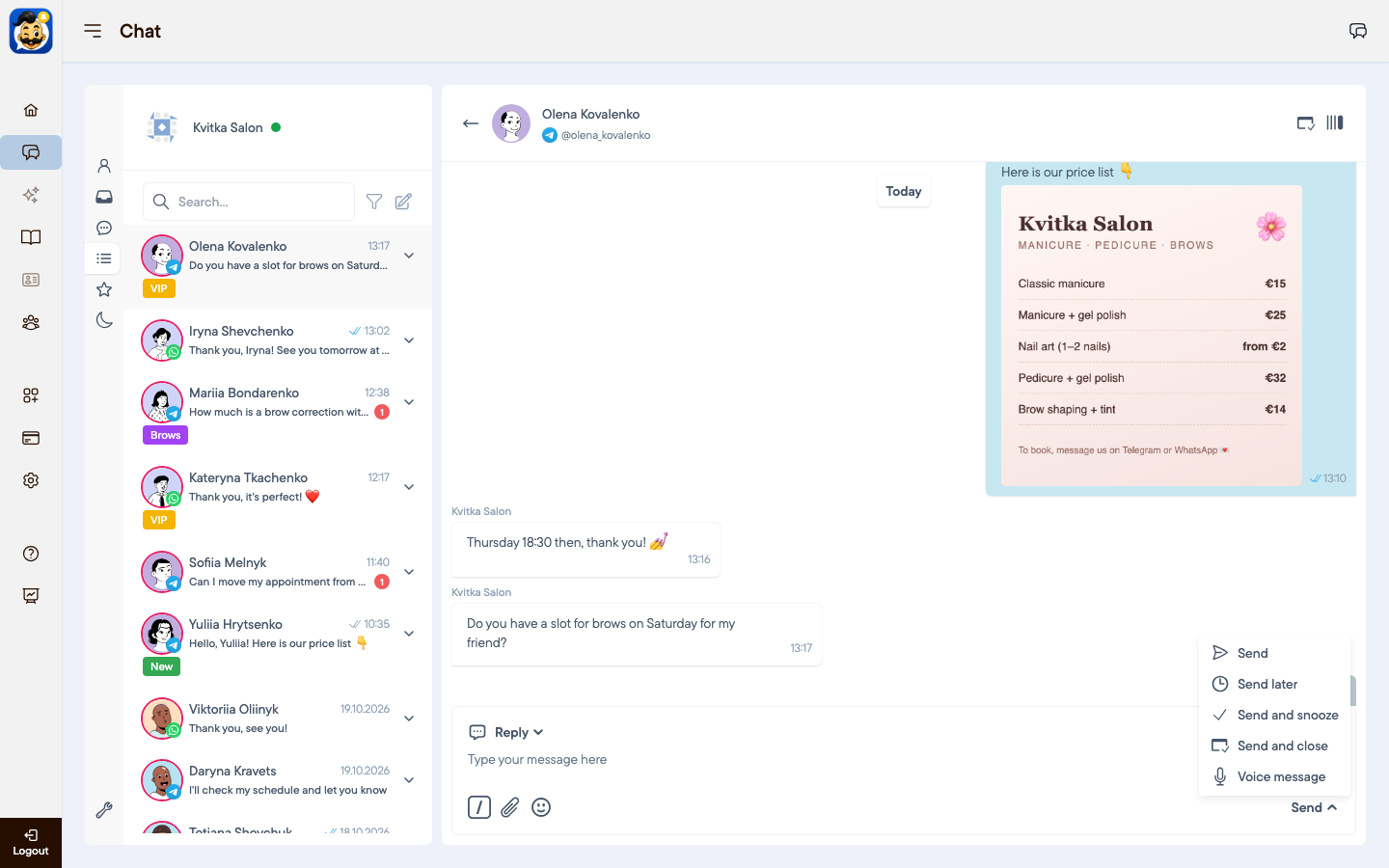
Click the arrow next to Send to choose:
Send later: schedule the message. A chat can have one scheduled message at a time.
Send and snooze: send the reply and move the chat to Snoozed.
Send and close: send the reply and close the chat.
Voice message: record a voice message.
Message statuses
One grey tick: the message was sent.
Two blue ticks: the client read it.
A red exclamation mark: the message was not sent. See Why a message was not sent.
Useful shortcuts
Ctrl+E (⌘+E on Mac): new chat.
Ctrl+F (⌘+F): search chats.
Ctrl+Shift+D (⌘+Shift+D): close or reopen the chat.
/: insert a template.
Was this article helpful?