
Organize chats: search, filters and tags
On this page
Use search, filters and tags to find the right chat quickly, and the chat menu to keep the list tidy.
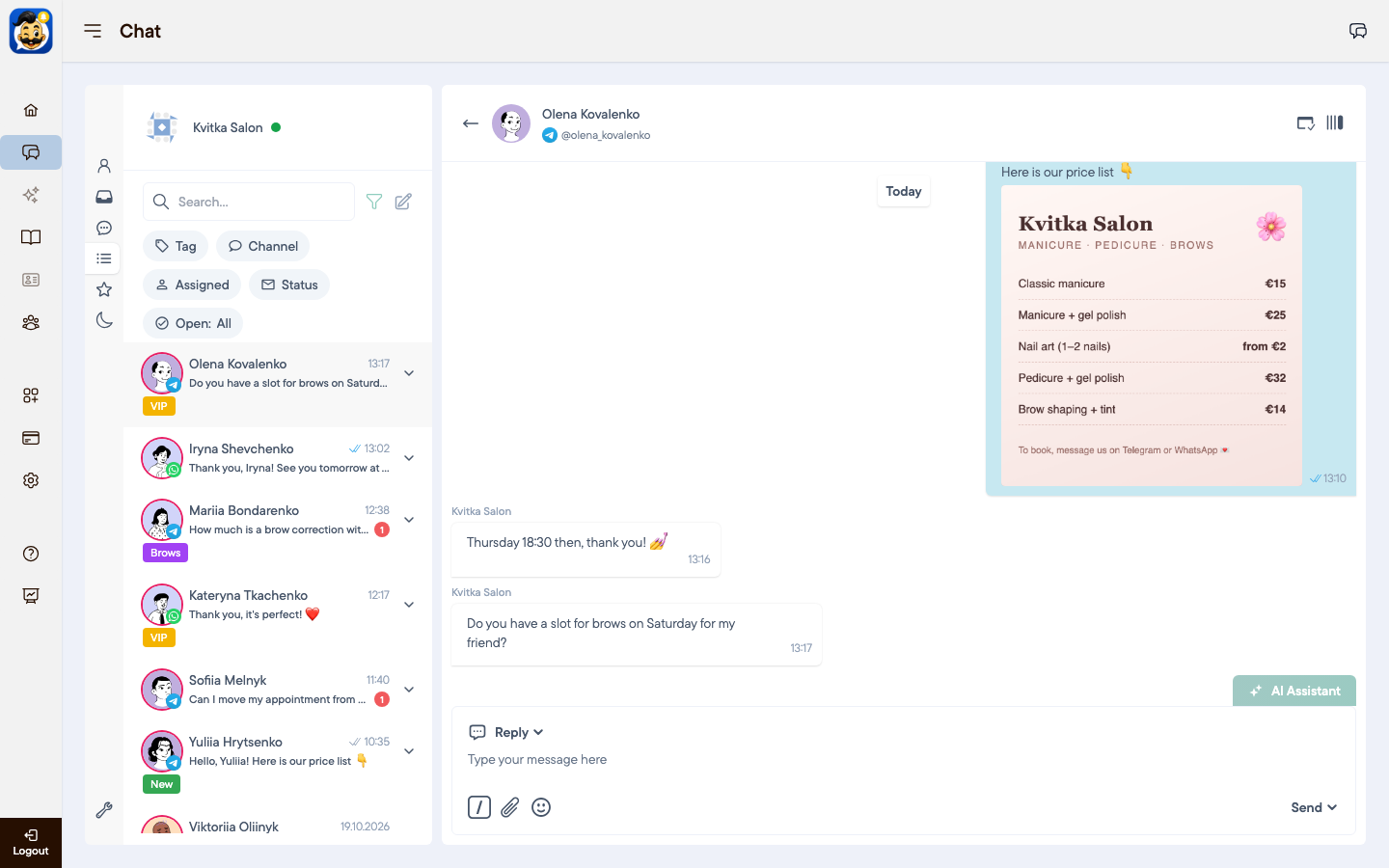
Search and filters
Type a client's name or phone number in Search.
Click the filter icon to filter chats by Tag, Channel, Assigned, Status (read or unread) and Open (open or closed chats).
Chat menu
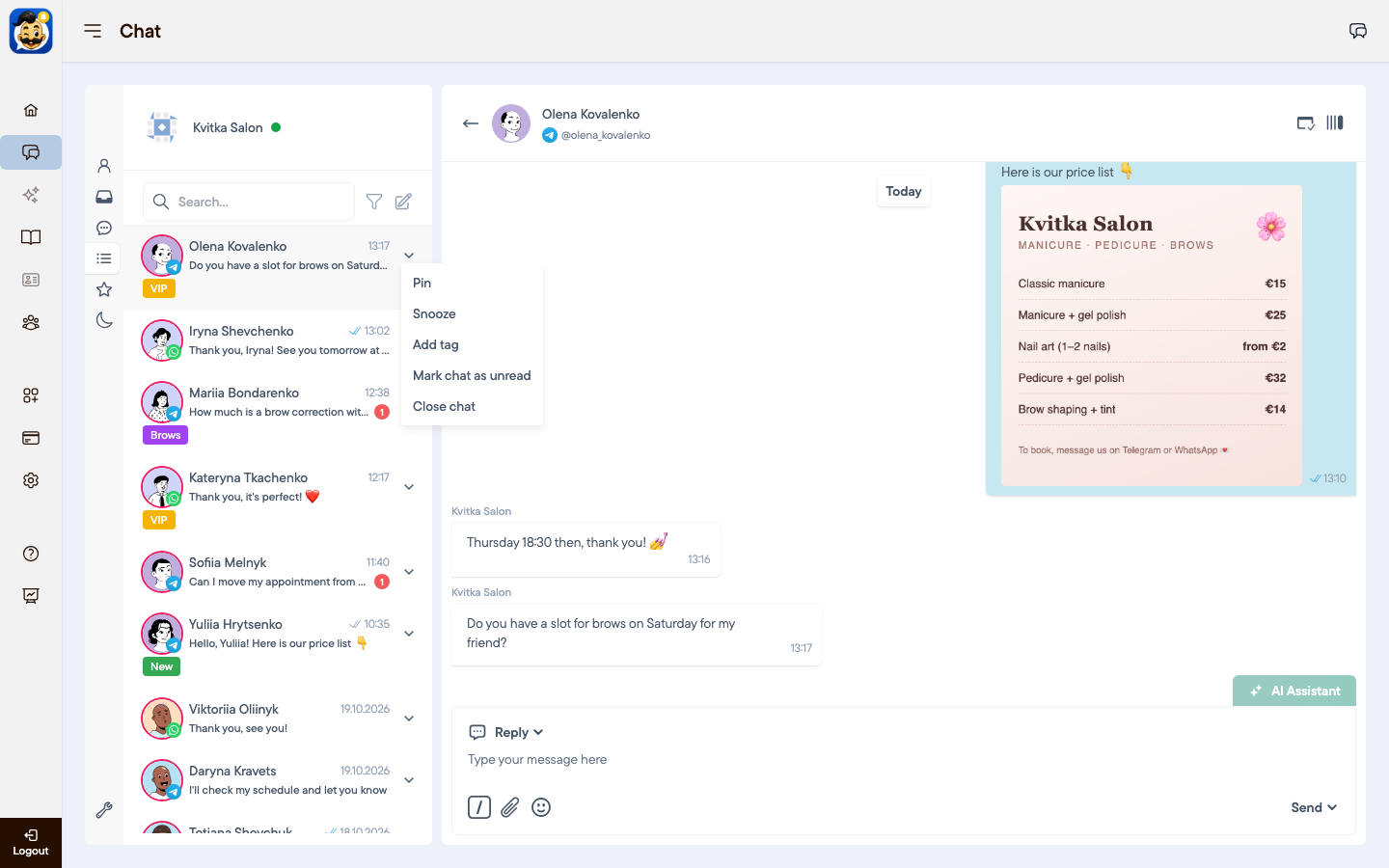
Click the arrow next to a chat:
Pin: keep the chat at the top of the list and in Favorites.
Snooze: move the chat to Snoozed. It returns to New when the client writes again.
Add tag: mark the chat, for example VIP or Brows.
Mark chat as unread: come back to it later.
Close chat: finish the conversation.
Tags
The account owner creates tags in Settings → Tags and folders. A tag name can be up to 10 characters long.
Client profile
Open a chat and press ] to see the client Profile:
name, phone and e-mail;
Language of the client;
Tags and notes from your team;
Link chat: join chats of the same client from different messengers in one profile;
Block user: stop receiving messages from this client.
Was this article helpful?