
Assign chats to your team
Assign each chat to the person responsible for it. Managers see only the chats assigned to them, and everyone finds their chats in the My folder.
Assign a chat by hand
Open the chat.
Press ] or click the profile icon in the top right corner to open the client Profile.
In Assigned, choose a team member.
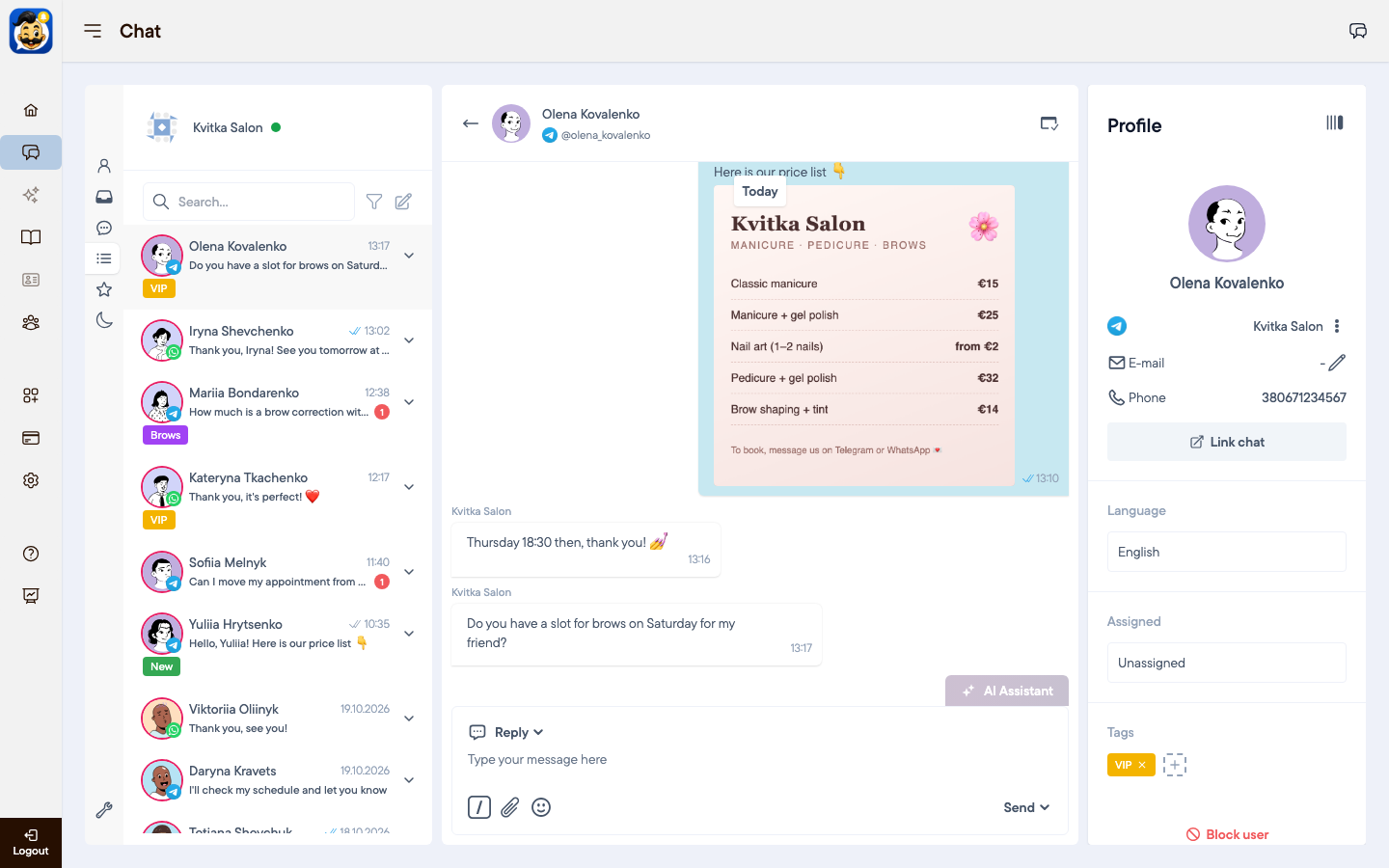
The account owner and administrators can assign chats.
Assign chats automatically
In the chat, open Settings → Assignment and select your channel group.
Choose a rule for During working hours and for Outside working hours. The rules are described below.
Click Save.
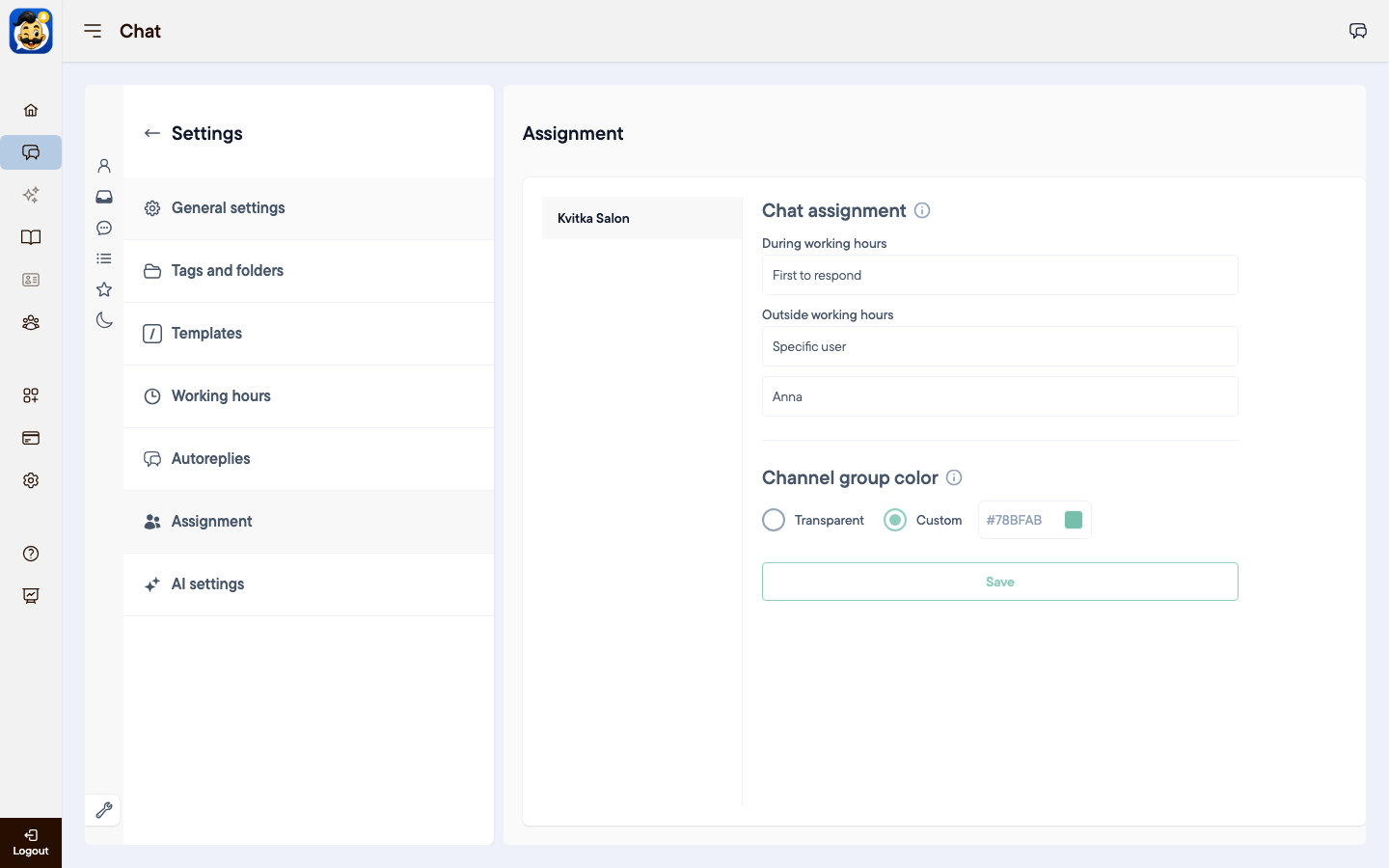
Disabled: chats are not assigned automatically.
First to respond: the chat goes to the person who replies first.
Random distribution: new chats are assigned to team members at random.
By load: the chat goes to the person with the fewest chats.
Specific user: all chats go to one person, for example the evening administrator.
Only the account owner can change automatic assignment.
Good to know
If a client already has an assigned person, new chats from this client go to the same person.
Channel group color on the same page colors the avatar ring of chats from this group. It helps when you have several branches.
Was this article helpful?
100% found this helpful (1 vote)