
Set working hours and autoreplies
Autoreplies tell clients that you received their message, even when nobody is at the desk. They depend on your working hours, so set the hours first.
Set working hours
In the chat, click the wrench icon at the bottom left to open Settings.
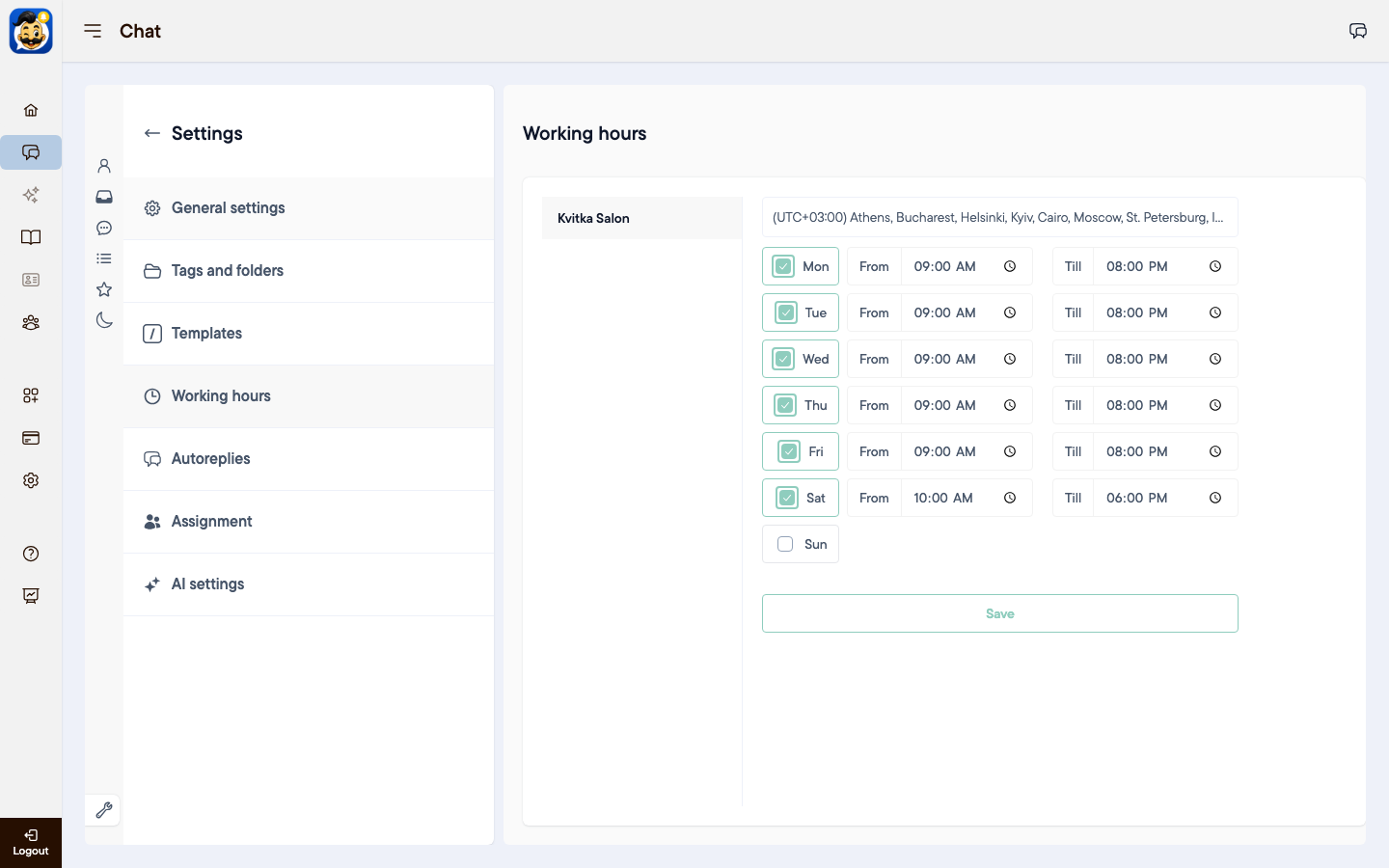
Open Working hours and select your channel group.
Choose your time zone.
Select the working days and set the time for each day.
Click Save.
Turn on autoreplies
In Settings, open Autoreplies and select your channel group.
Turn on the messages you need and write the text. The message types are described below.
Click Save.
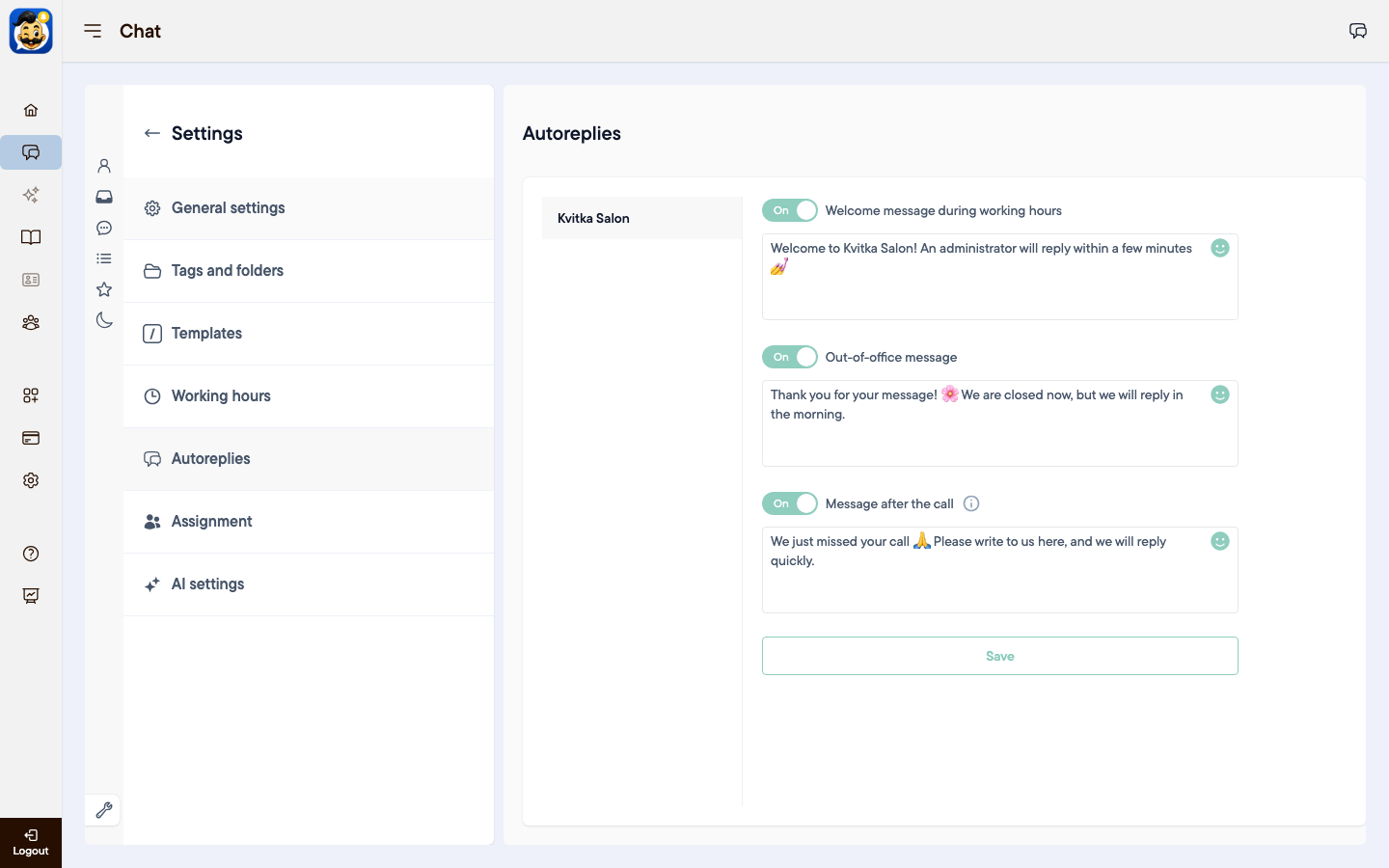
Welcome message during working hours: for example "An administrator will reply within a few minutes".
Out-of-office message: sent outside working hours, for example "We will reply in the morning".
Message after the call: sent when you miss a client's call in WhatsApp or Telegram.
How autoreplies work
A client gets no more than one autoreply per day.
If your team has already replied to the client that day, no autoreply is sent.
The time zone does not change automatically for summer and winter time. Change it in Working hours when the clocks change.
Only the account owner can change working hours and autoreplies.
Was this article helpful?
100% found this helpful (1 vote)