
Connect Planfix
On this page
Connect Planfix to receive client messages from WhatsApp and Telegram as Planfix tasks. Your team replies inside the task, and Povidomlyaka delivers the reply to the client in the same messenger. Setup takes about 5 minutes.
What you'll need
A Povidomlyaka account with a connected WhatsApp or Telegram channel. See Connect WhatsApp and Connect Telegram.
A Planfix account with access to Account management.
Step 1. Open Povidomlyaka in Planfix
Planfix lists Povidomlyaka as a third-party service for WhatsApp and for Telegram. Connect each messenger separately.
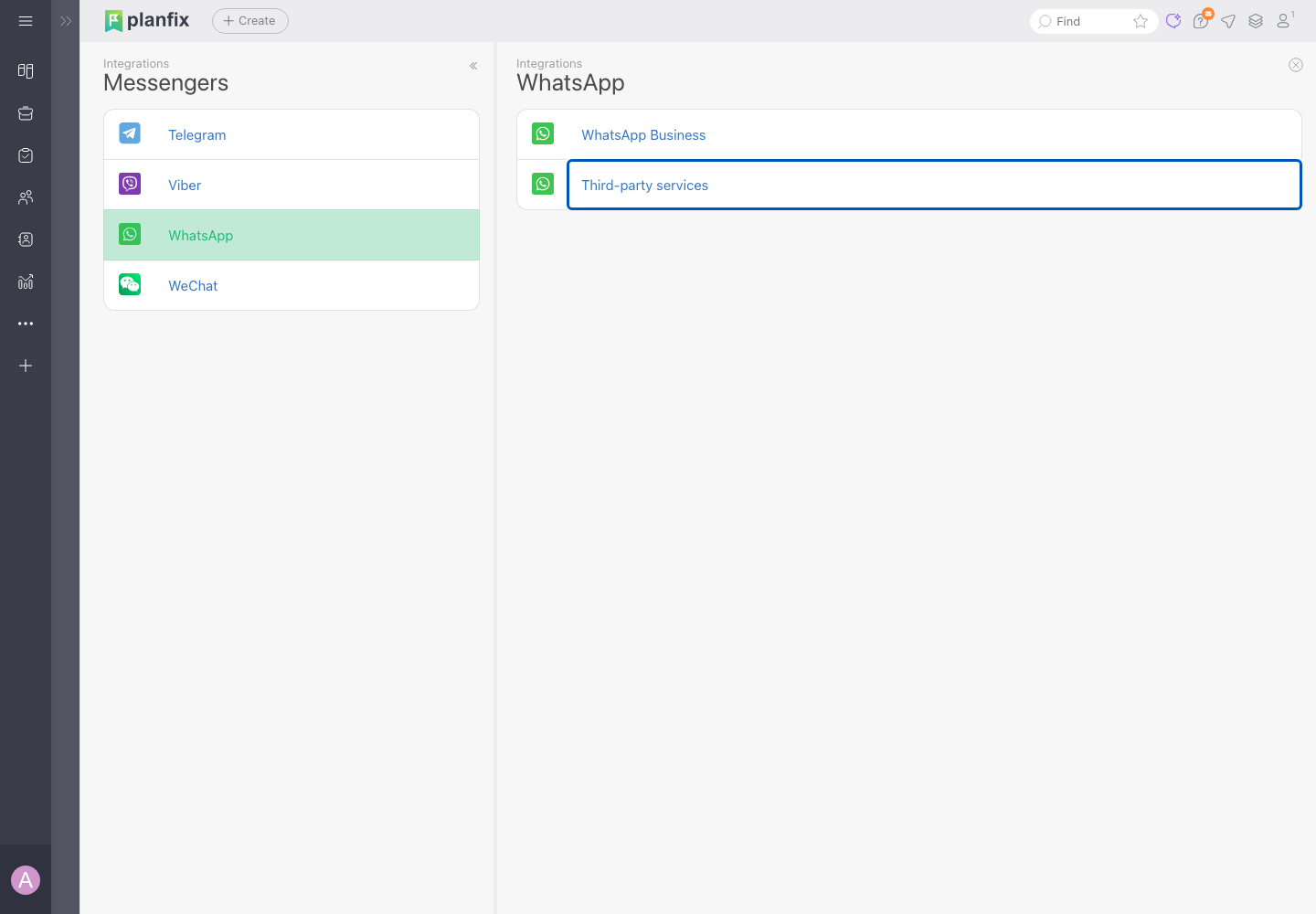
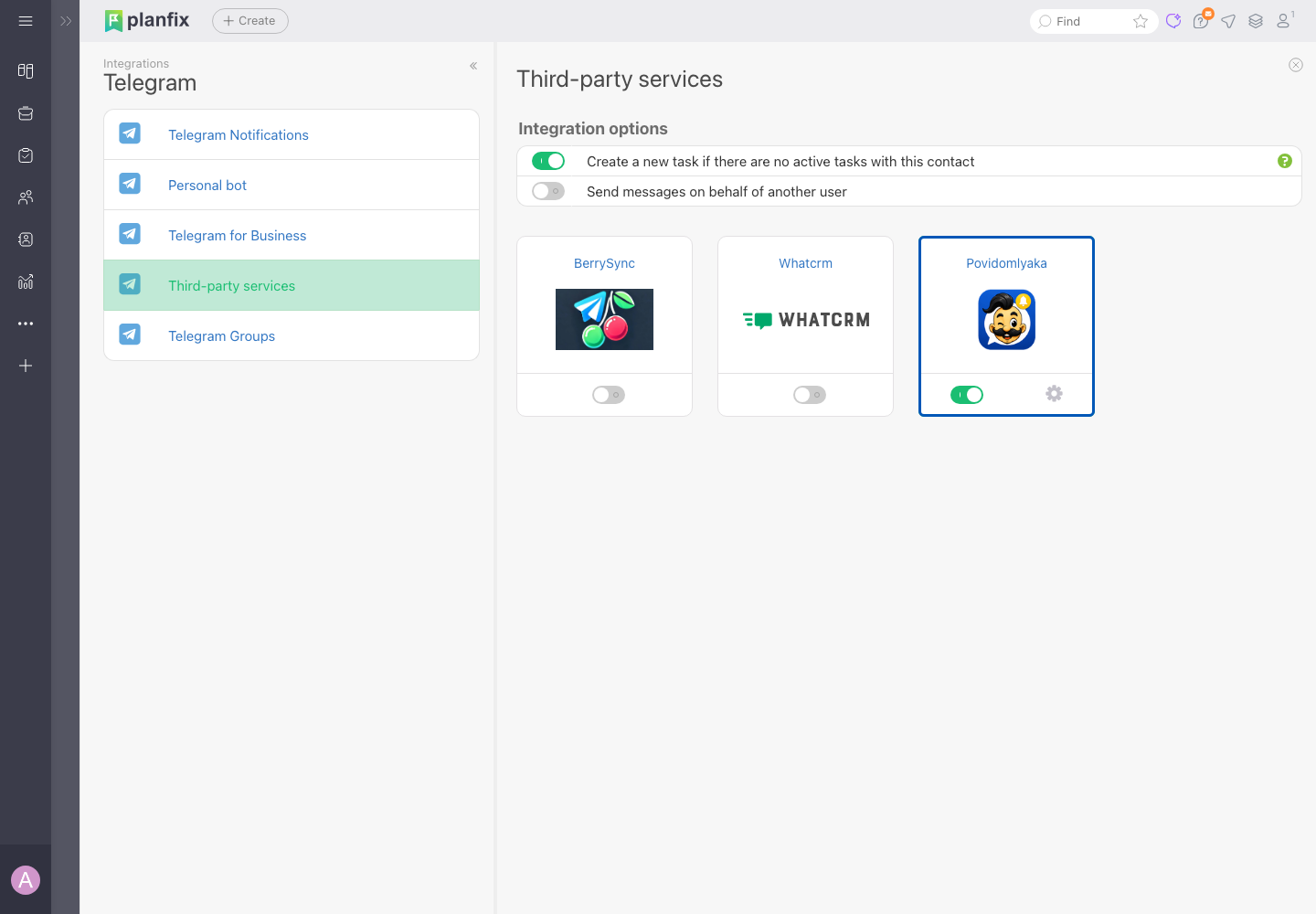
In Planfix, open Account management → Integrations → Messengers.
Choose WhatsApp (or Telegram), then Third-party services.
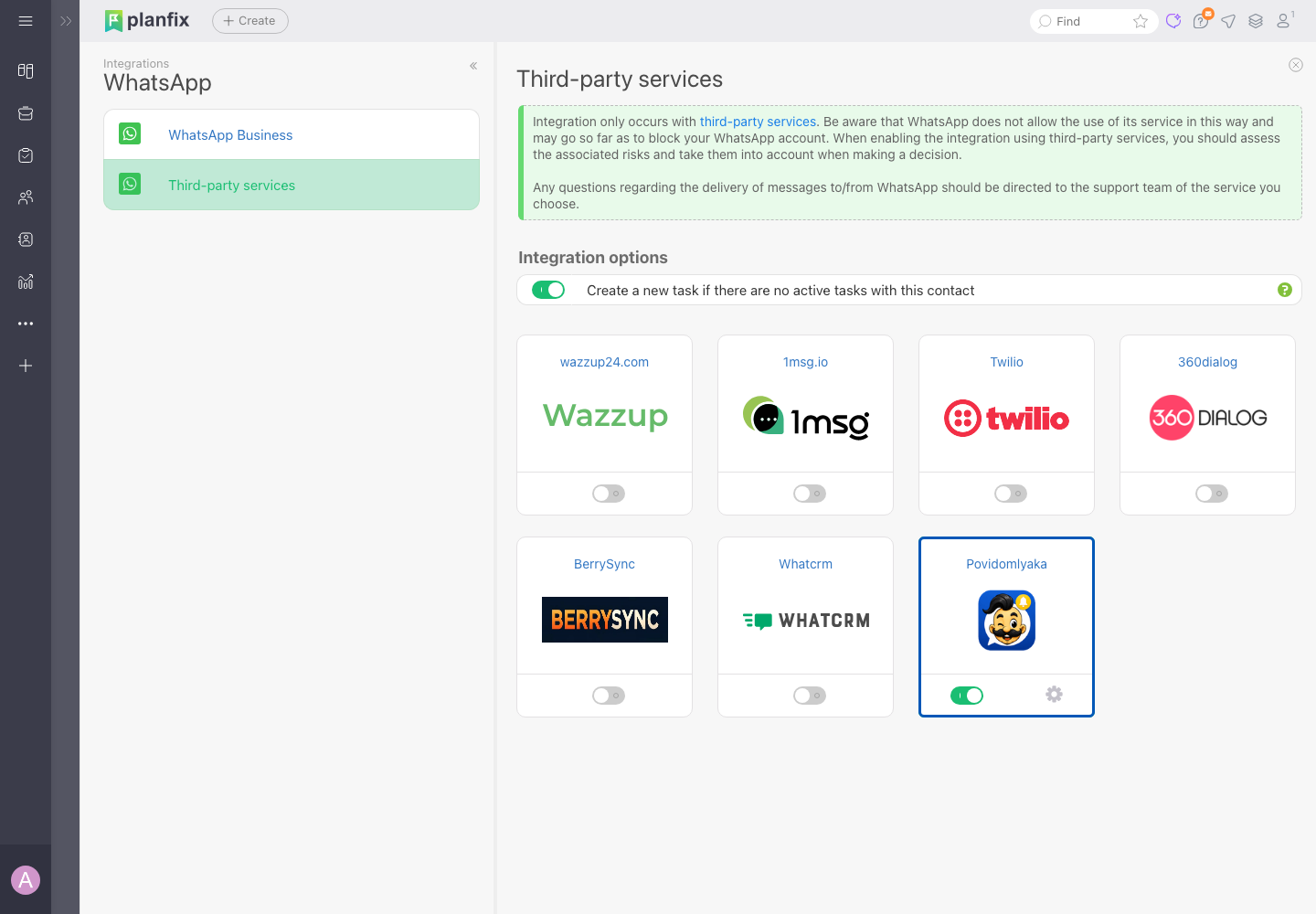
Find the Povidomlyaka tile and click the gear icon (or Activate).
Step 2. Copy the address and key from Planfix
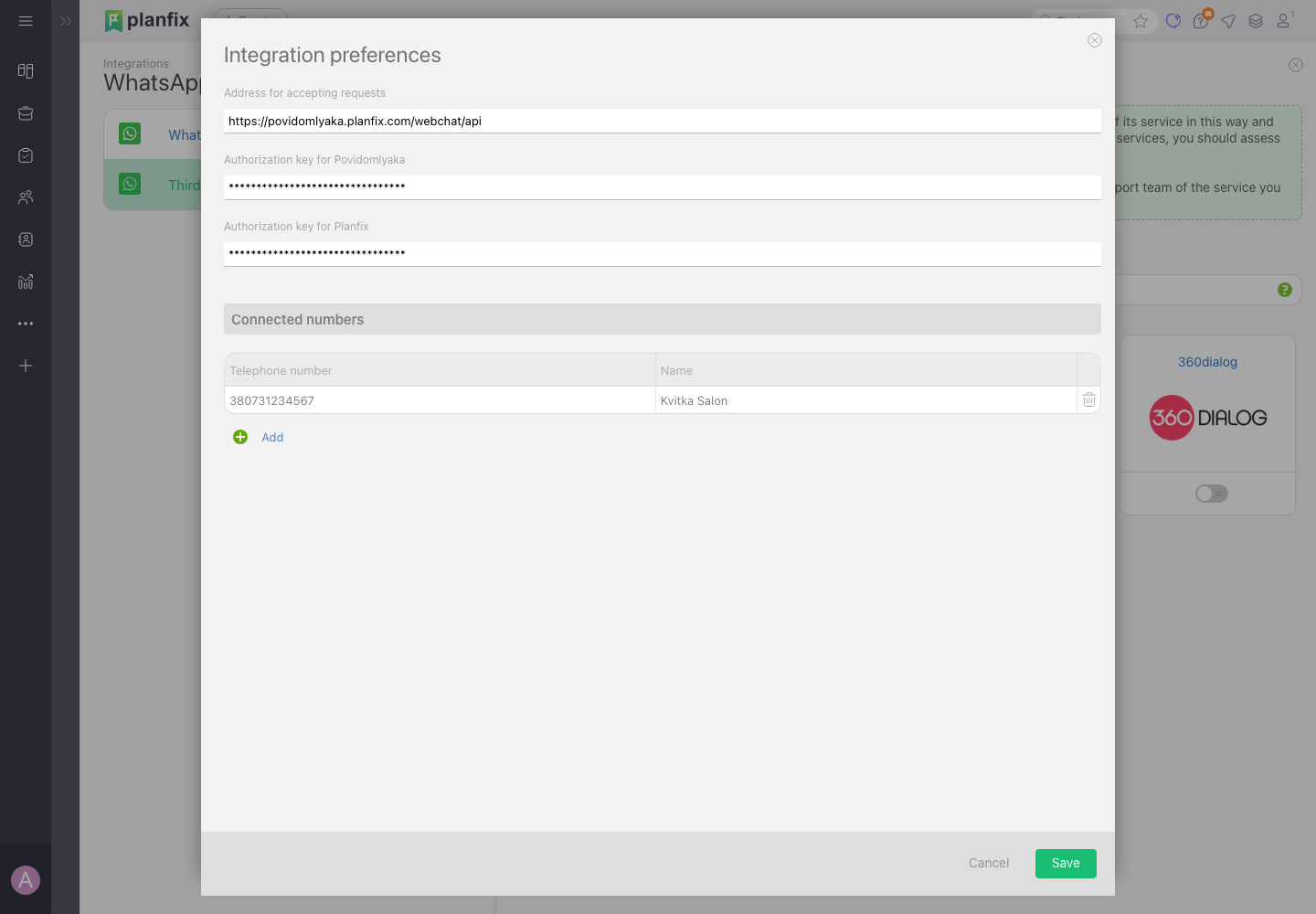
The Integration preferences window shows the values Povidomlyaka needs.
Copy Address for accepting requests.
Copy Authorization key for Povidomlyaka.
Keep this window open. You will come back to it in Step 4.
Step 3. Paste them into Povidomlyaka
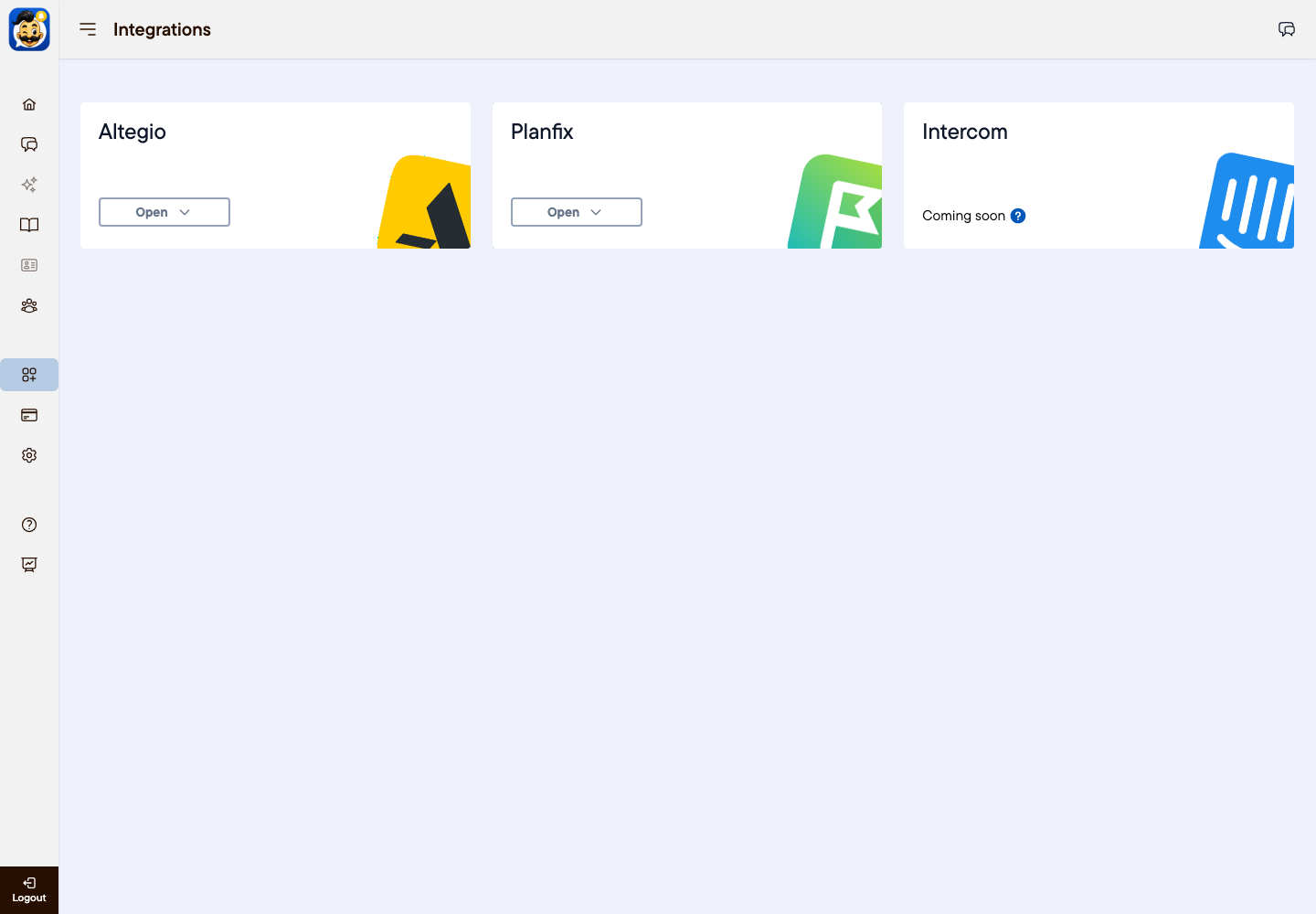
In Povidomlyaka, open Integrations and click Open on the Planfix card.
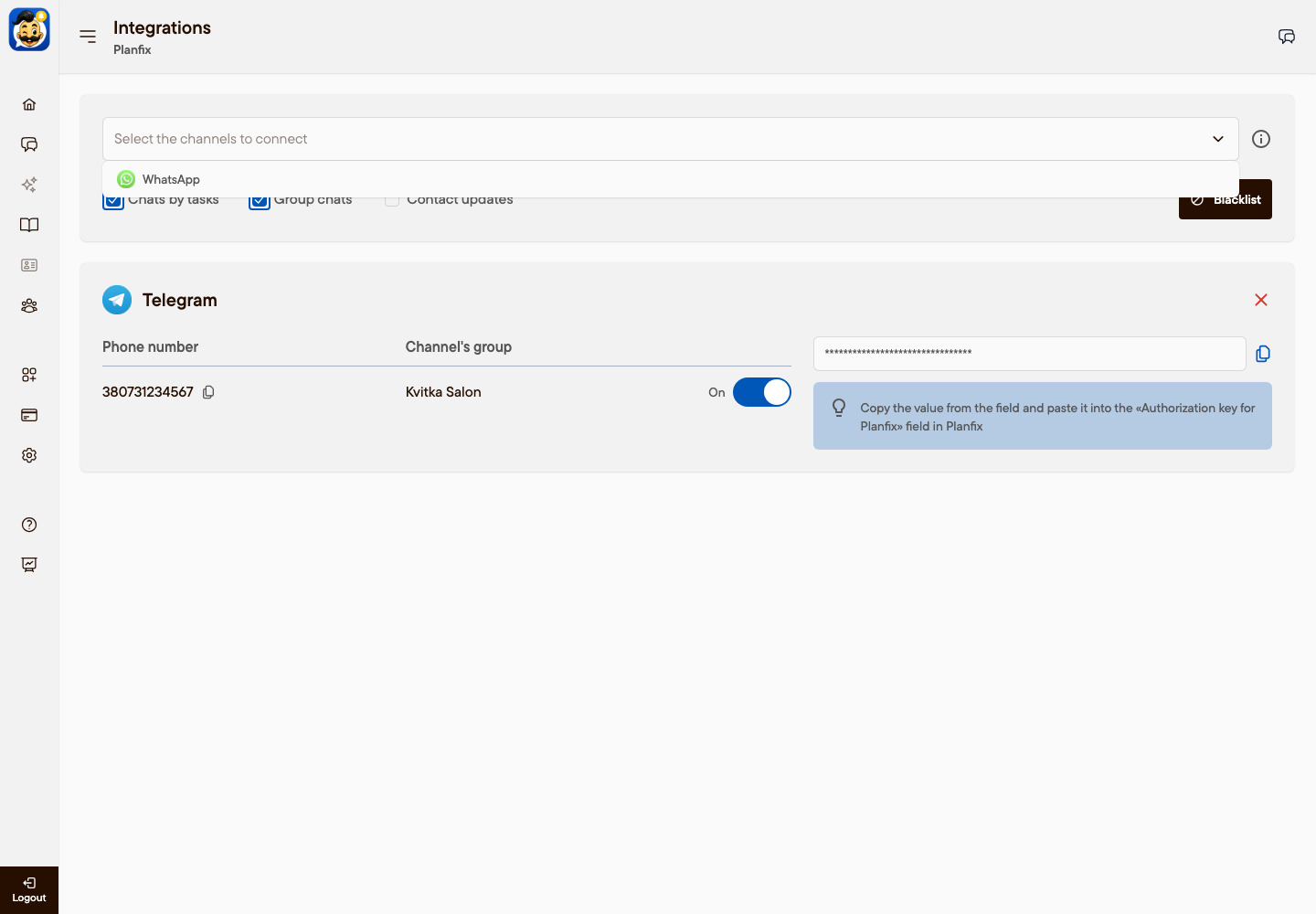
In Select the channels to connect, choose WhatsApp or Telegram — the same messenger as in Planfix.
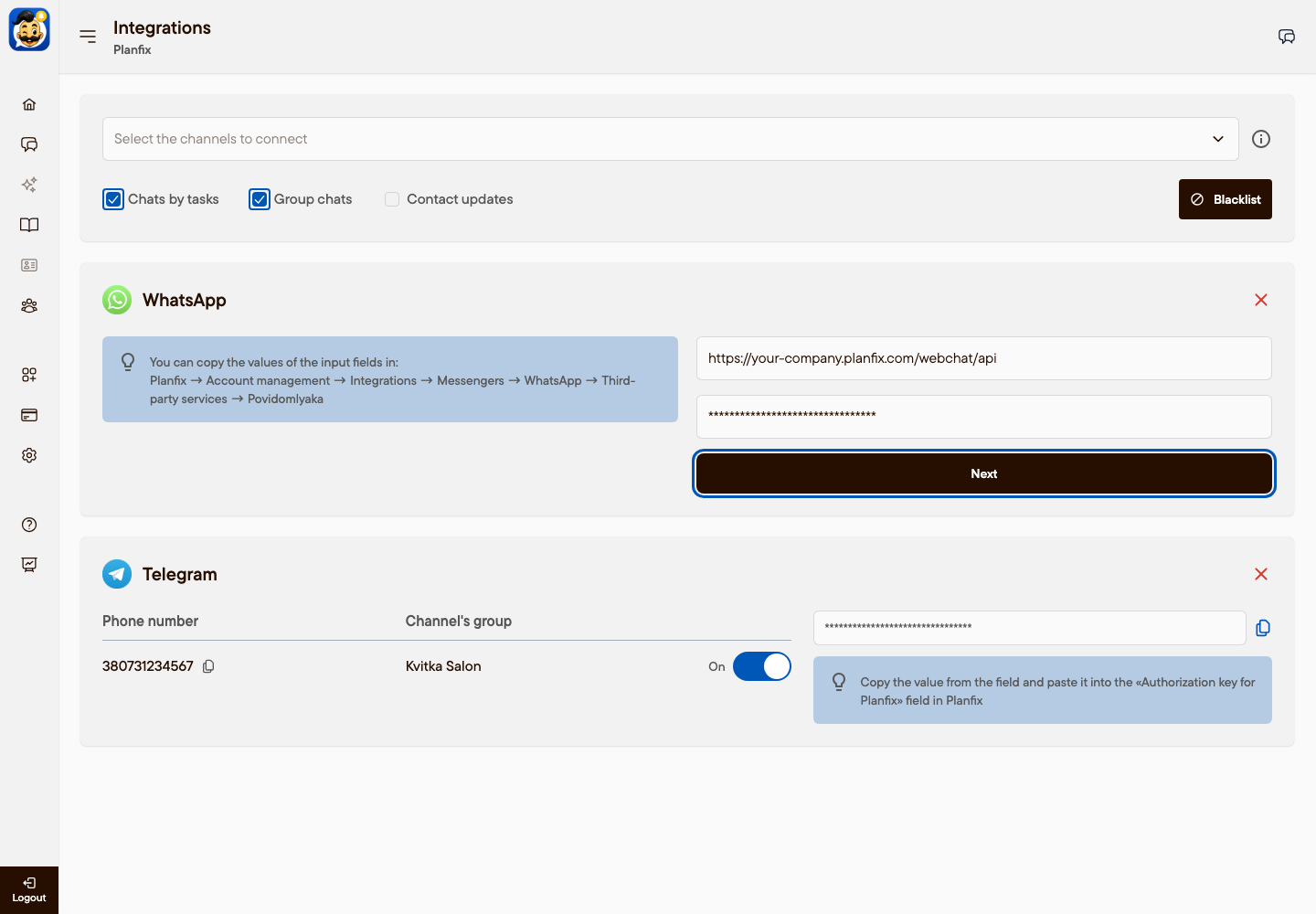
Paste the address into the first field and the key into the second field.
Click Next.
Step 4. Finish the setup in Planfix
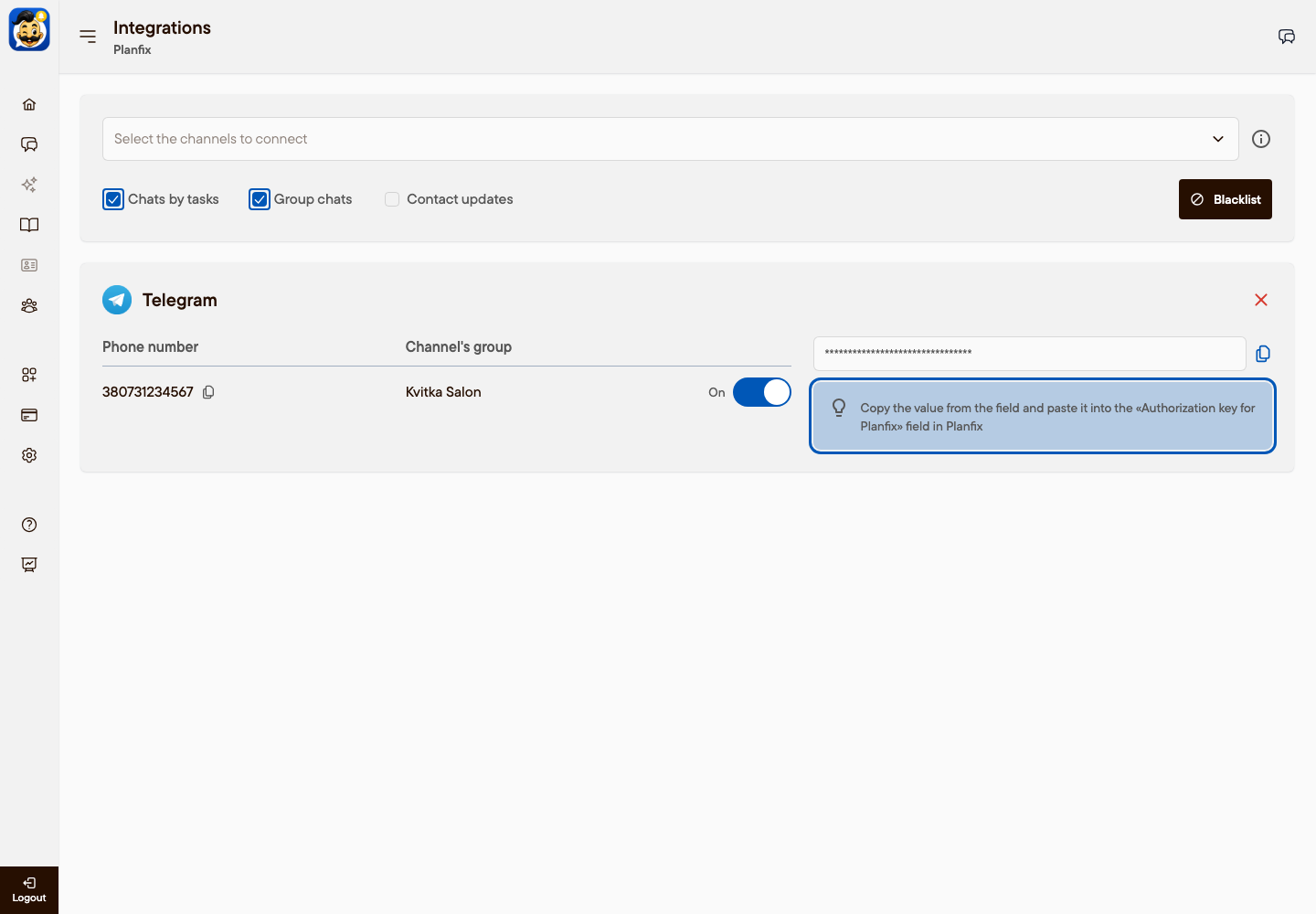
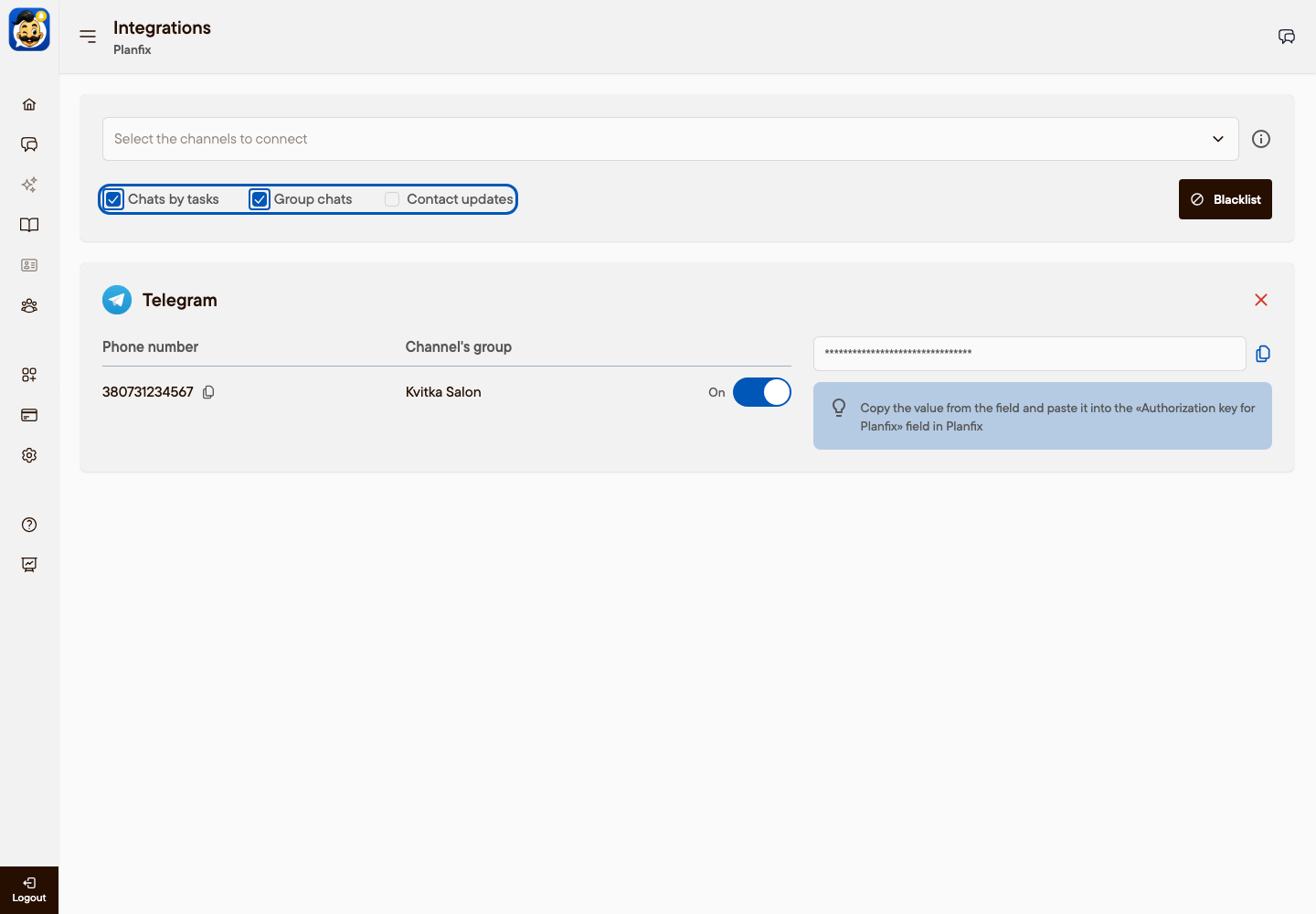
After you click Next, Povidomlyaka shows your connected channels and a key for Planfix.
Make sure the channel you need is switched On.
Click the copy icon next to the key.
In the Planfix Integration preferences window, paste the key into Authorization key for Planfix.
Under Connected numbers, click Add, enter the phone number of your channel and confirm. Add a name if you like.
Click Save. The Povidomlyaka tile switches on after a successful save.
Repeat Steps 1–4 for the second messenger if you use both WhatsApp and Telegram.
Step 5. Choose what to sync
The options at the top of the Planfix page in Povidomlyaka apply to all connected messengers.
Chats by tasks: keep a separate Planfix task for each of your connected numbers.
Group chats: also send messages from group chats to Planfix.
Contact updates: keep client contact details in Planfix up to date.
Blacklist: messages from these phone numbers are never sent to Planfix.
Result
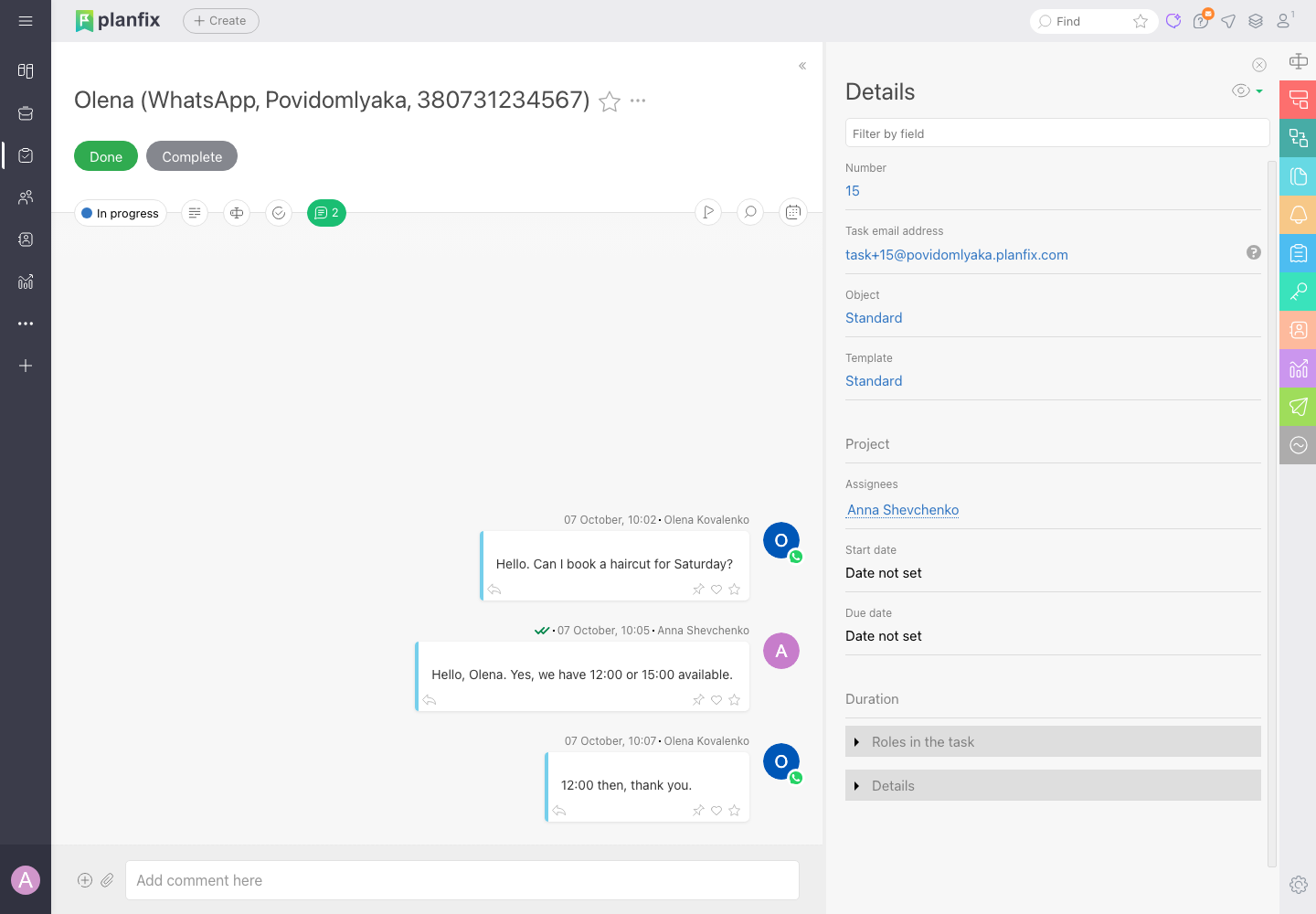
New client messages appear in Planfix as tasks named «Client name (WhatsApp, Povidomlyaka, phone number)». Replies written in the task are delivered to the client in the same messenger.
Send notifications from Planfix
Planfix composes the message text, and Povidomlyaka delivers it to the client.
To send messages automatically, set up automatic scenarios for contacts in Planfix (see Planfix help).
Formatting and attachments follow the Planfix rules for messenger messages.
Good to know
SMS from Planfix is not available yet. Povidomlyaka is not listed in Planfix SMS services. Use WhatsApp or Telegram.
WhatsApp connects by QR code, not through the official WhatsApp Business API. Planfix shows a warning about this on the third-party services page.
One Planfix integration per account. If Povidomlyaka shows «User with this planfix token already exists», this Planfix key is already linked to another Povidomlyaka account. Disconnect it there first, or contact support.
If you connect a new channel later, add its number under Connected numbers in Planfix.
Next steps
Was this article helpful?